
VS Code Tricks Every Programmer Should Use in 2026
Visual Studio Code – Complete Hacks List
(Engineering Students Must Know)
Welcome to the ultimate productivity guide for engineering students using Visual Studio Code (VS Code). As an engineering student, your time is split between attending lectures, completing complex programming assignments, and collaborating on capstone projects. Mastering your Integrated Development Environment (IDE) is one of the highest-leverage investments you can make to improve your coding speed and reduce frustration.
This comprehensive document catalogs the most powerful, student-focused hacks built into VS Code. Ranging from foundational keyboard shortcuts that save you thousands of clicks, to advanced GitHub integrations and automated debugging techniques, these features will elevate your workflow from a beginner to a professional standard. Read through, practice these techniques, and keep this guide as a reference for your academic and professional engineering career.
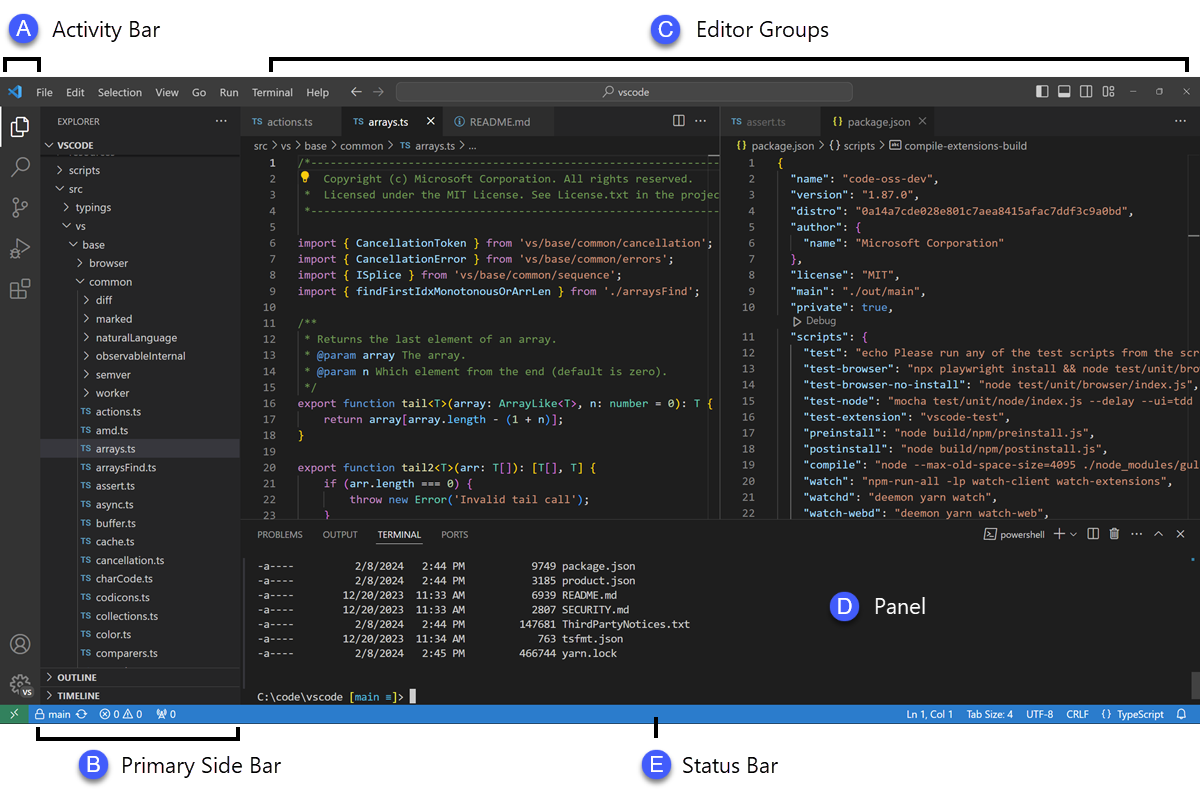
1. Ultimate Shortcuts
Navigating the VS Code interface using the mouse is highly inefficient. The fastest developers rely entirely on their keyboards to jump between files, execute commands, and manage their editor layout. These ultimate shortcuts form the foundation of professional editing.
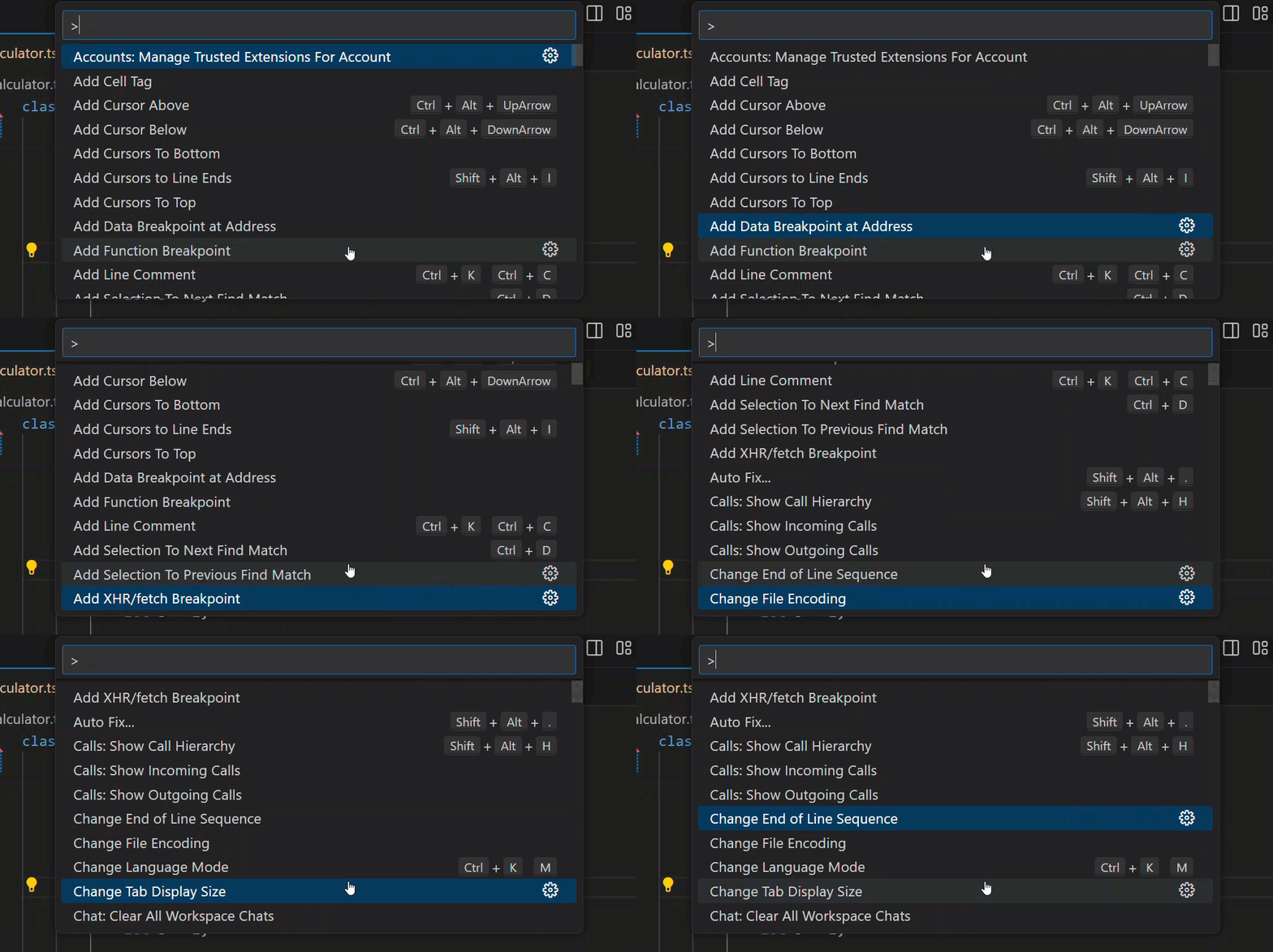
- What it is: The Command Palette is the central hub for accessing almost every VS Code command. It allows you to search for and execute commands without navigating through complex menu structures.
- Shortcut:
Ctrl+Shift+P(Windows/Linux) - How to use it: Press the shortcut to open a dropdown input box at the top center of the editor. Type a few keywords related to the action you want to perform (e.g., “theme”, “format”, “interpreter”).
- How it works in practice: Instead of clicking through
File > Preferences > Color Theme, you simply open the palette, type “theme”, and hit Enter.
Ctrl+Shift+P, type “Python: Select Interpreter”, and instantly choose the correct environment.
- What it is: A specialized version of the Command Palette designed exclusively for finding and opening files rapidly within your current workspace.
- Shortcut:
Ctrl+P(Windows/Linux) - How to use it: Press the shortcut and begin typing the name of the file you want to open. The list filters dynamically. Press Enter to open the top result.
- How it works in practice: VS Code uses fuzzy matching. You do not need to type the exact path. Typing “appjs” will match
src/components/app.js.
Ctrl+P, type “dbconf”, and instantly open database_config.json.
- What it is: Keystrokes that allow you to shift the current line of code up or down, or instantly duplicate it, without needing to highlight, cut, or paste.
- Shortcut: Move Line:
Alt+Up/Down. Copy Line:Shift+Alt+Up/Down(Windows/Linux). - How to use it: Place your cursor anywhere on the target line (no highlighting required) and execute the shortcut. The entire line will shift or clone in the designated direction.
- How it works in practice: The editor automatically handles the insertion and spacing of the line at its new location, preserving the surrounding code’s integrity.
Shift+Alt+Down to duplicate the row instantly, then edit the numbers.
2. Smart Coding Hacks
Writing syntax manually character by character is prone to errors. VS Code offers intelligent coding features that understand the context of your language, helping you write cleaner code faster and with fewer syntactical mistakes.
- What it is: A smart selection tool that highlights code based on semantic scope (e.g., inside a string, inside parentheses, inside a function block) rather than just physical characters.
- Shortcut: Expand:
Shift+Alt+Right. Shrink:Shift+Alt+Left(Windows/Linux). - How to use it: Place your cursor inside a block of code. Pressing the expand shortcut will highlight the word, pressing it again highlights the entire string/statement, pressing it again highlights the function block, and so on.
- How it works in practice: The editor parses the Abstract Syntax Tree (AST) of your code to understand where logical blocks begin and end.
Shift+Alt+Right three times to perfectly highlight the entire object block to copy it, without dragging your mouse and missing a bracket.
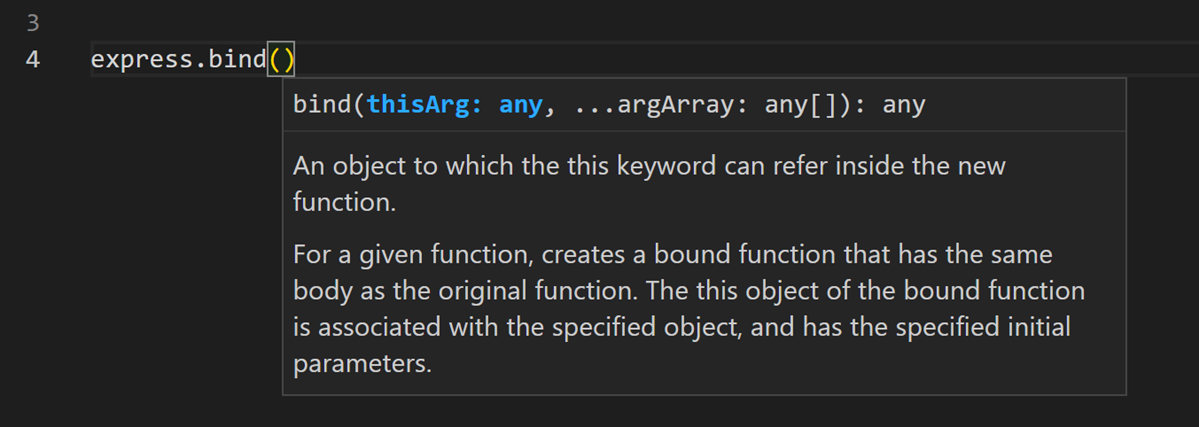
- What it is: VS Code’s intelligent code completion tool that provides contextual suggestions, documentation, and function parameter definitions as you type.
- Shortcut: Trigger Suggestion:
Ctrl+Space. - How to use it: While typing a function name or class method, press
Ctrl+Spaceto force the suggestion menu to appear. Once a function is selected, a popup will show the required parameters. - How it works in practice: The editor reads your project’s types and installed libraries to offer valid completions. Pressing Tab or Enter commits the suggestion.
Ctrl+Space. A list of all available methods appears. You select `applyForce` and the parameter info popup immediately tells you it requires `(Vector3 direction, float magnitude)`.
- What it is: An automated feature that reformats your messy code according to standard indentation, spacing, and line-breaking rules for your specific programming language.
- Shortcut: Format Document:
Shift+Alt+F. Format Selection:Ctrl+K Ctrl+F(Windows/Linux). - How to use it: Press the shortcut at any time. The entire file (or just the highlighted portion) will instantly snap into perfectly structured formatting.
- How it works in practice: Relies on built-in formatters (like the default HTML/JS formatter) or installed extensions (like Prettier) to parse and reprint your code cleanly.
Shift+Alt+F, and the entire file is instantly indented correctly, making the logic clear.
3. Multi-Cursor Magic
Multi-cursor editing is one of the most beloved features in modern text editors. It allows you to place multiple cursors on the screen simultaneously, enabling you to apply the same edits to multiple lines or words concurrently.
- What it is: A tool that finds the next (or every) instance of the currently selected word and adds a new cursor to it, allowing you to edit them all at once.
- Shortcut: Add Next Occurrence:
Ctrl+D. Add All Occurrences:Ctrl+Shift+L(Windows/Linux). - How to use it: Highlight a word or variable. Press
Ctrl+Dto select the next matching instance. Keep pressing it to add more. Alternatively, pressCtrl+Shift+Lto instantly place a cursor on every single match in the file. Type to replace all of them simultaneously. - How it works in practice: It behaves like a fast, visual “Find and Replace” that operates entirely via keyboard and provides instant visual feedback.
Ctrl+Shift+L, and simply type `sensor_reading`. All instances in the file are updated instantly.
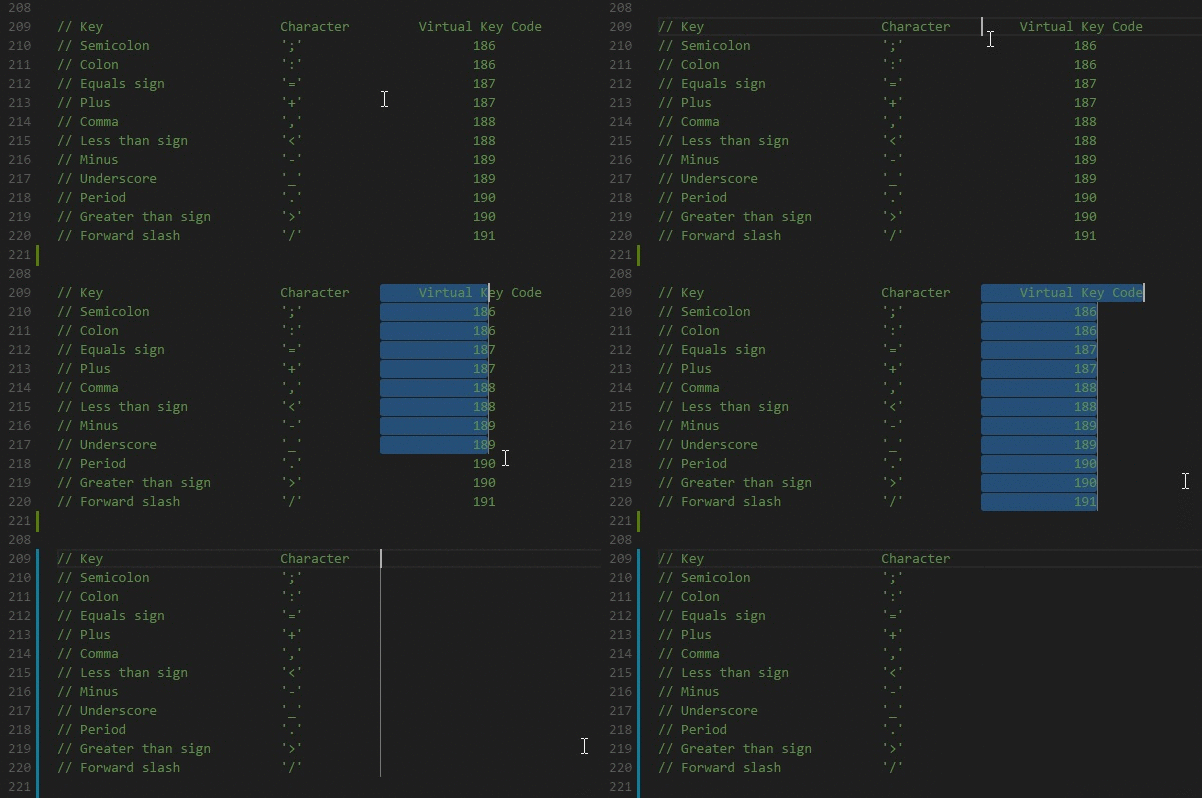
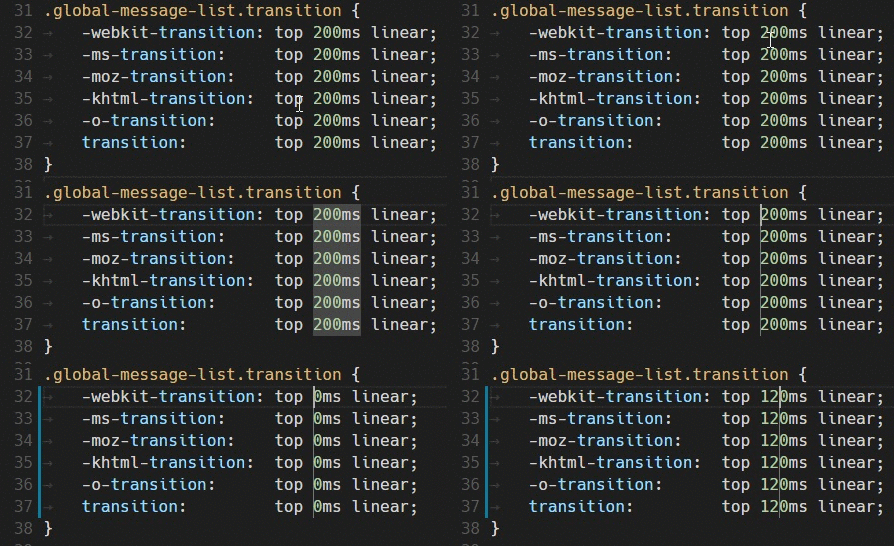
- What it is: A method to place cursors in a vertical column, allowing you to type or delete text on multiple consecutive lines at the exact same horizontal position.
- Shortcut:
Shift+Alt+Drag Mouse(Windows/Linux). - How to use it: Hold
Shift+Alt, click at the starting point, and drag your mouse straight down. A vertical line of cursors will appear. - How it works in practice: Any keystroke you make will be duplicated across every line in the column simultaneously.
4. Web Dev Hacks
For students taking web development or human-computer interaction courses, VS Code is the industry standard. It comes packed with features specifically designed to accelerate writing HTML, CSS, and JavaScript.
- What it is: A built-in toolkit that allows you to write CSS-like abbreviations that instantly expand into full HTML boilerplate code.
- Shortcut: Type abbreviation, then press
TaborEnter. - How to use it: Open an HTML file. Type an Emmet abbreviation (e.g.,
!for standard HTML5 boilerplate, orul>li*3) and hit Tab. - How it works in practice: The abbreviation engine reads your syntax and generates the corresponding DOM structure instantly.
nav>ul>li.nav-item*4>a, press Tab, and instantly receive a fully structured navigation menu with 4 linked list items containing the appropriate CSS classes.
- What it is: Reusable blocks of code that can be inserted quickly via an abbreviation. While VS Code has built-in snippets, you can define your own custom snippets.
- How to use it: Navigate to
File > Preferences > Configure User Snippets. Select your language, and define the snippet in the JSON file using an abbreviation trigger and the body text. - How it works in practice: Once saved, typing the prefix (e.g.,
myloop) in the editor will prompt IntelliSense to insert your custom code block.
- What it is: Running a local development server that automatically reloads your web browser the moment you save changes to your HTML, CSS, or JS files.
- How to use it: Requires an extension like Live Server. Once installed, click the “Go Live” button in the bottom status bar of VS Code.
- How it works in practice: It spawns a local server (e.g., port 5500) and injects a WebSocket script into your HTML. When you press
Ctrl+S, the server sends a signal to the browser to refresh immediately.
5. Must-Have Extensions
VS Code is lightweight out of the box. Its true power comes from its massive marketplace of extensions. Here are the critical extensions that every engineering student should have installed.

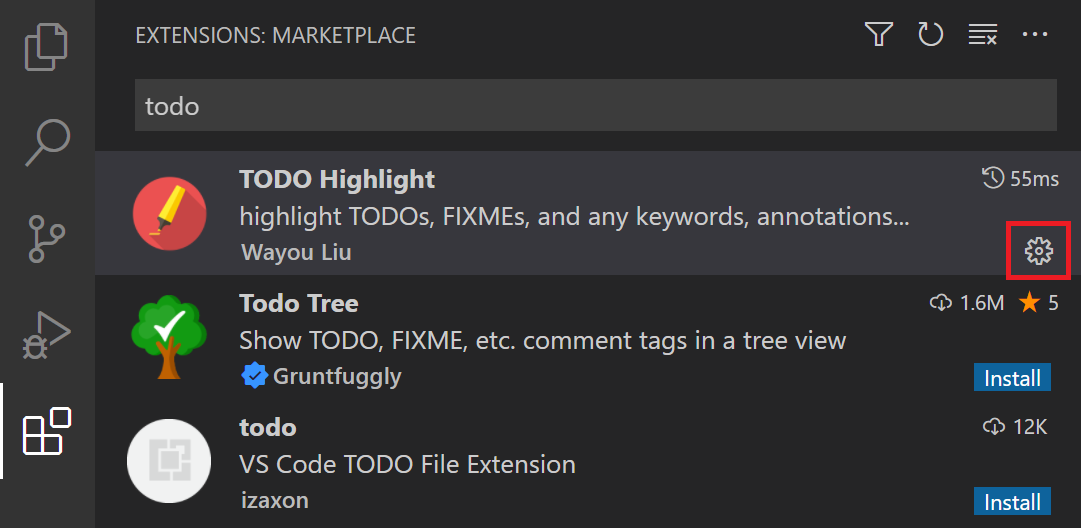
- What it is: Combining two industry-standard tools: Prettier for opinionated code formatting (spacing, line breaks) and ESLint for code quality rules (catching potential errors).
- How to use it: Install both extensions from the Marketplace. Set Prettier as the default formatter and enable “Format on Save” in your settings.
- How it works in practice: Prettier ensures your code always looks uniform, while ESLint places red squiggly lines under problematic code patterns (like unused variables or unsafe type coercions).
https://marketplace.visualstudio.com/items?itemName=esbenp.prettier-vscode
Purpose: Enforces a consistent coding style across your entire codebase automatically.
https://marketplace.visualstudio.com/items?itemName=dbaeumer.vscode-eslint
Purpose: Analyzes code to quickly find problems and enforce best practices.
- What it is: GitLens supercharges the built-in Git capabilities, while Error Lens improves the visibility of errors by printing the diagnostic message inline with your code.
- How to use it: Install from the Marketplace. They work automatically in the background.
- How it works in practice: GitLens adds faint “blame” annotations at the end of every line, showing who wrote the code and when. Error Lens takes the error messages that usually require hovering to read and pastes them directly next to the broken code in bright red.
https://marketplace.visualstudio.com/items?itemName=eamodio.gitlens
Purpose: Visualize code authorship at a glance via Git blame annotations and explore repository history.
https://marketplace.visualstudio.com/items?itemName=usernamehw.errorlens
Purpose: Highlights the entire line of an error and prints the message inline for instant visibility.
- What it is: An extension that provides autocomplete for filenames and file paths within your workspace.
- How to use it: Install from the Marketplace. Begin typing a file path inside quotes (e.g., in an import statement or HTML src attribute).
- How it works in practice: As you type
./, a dropdown appears listing all files and folders in the current directory, eliminating the guesswork of relative file paths.
https://marketplace.visualstudio.com/items?itemName=christian-kohler.path-intellisense
Purpose: Autocompletes filenames, preventing broken links and missing module imports.
../../data/experiment_results.csv, ensuring the path is 100% correct.
6. Debugging Hacks
Relying on `print()` statements is a beginner’s habit. VS Code has a world-class integrated debugger that allows you to pause execution, inspect memory, and step through logic line-by-line.
- What it is: Using breakpoints, execution stepping, the Watch panel, and the Debug Console to dissect your program while it is running.
- Shortcut: Toggle Breakpoint:
F9. Start Debugging:F5. Step Over:F10. Step Into:F11. - How to use it: Click the margin to the left of the line numbers to set a red dot (Breakpoint). Press
F5to launch your code in debug mode. The execution will pause exactly at the red dot. - How it works in practice: Once paused, use the debugging toolbar to step through the code. Use the “Watch” panel on the left to monitor specific variables, and use the “Debug Console” at the bottom to evaluate mathematical expressions live.

7. Terminal Power
Engineers live in the terminal. VS Code integrates a fully functional terminal directly into the editor, complete with advanced productivity features so you never have to switch windows.
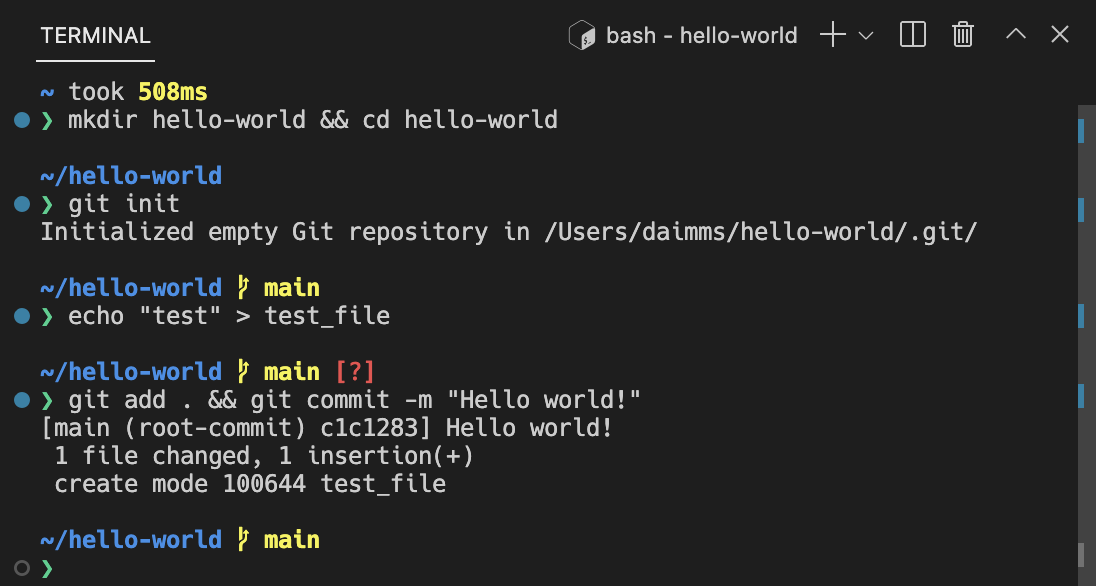
- What it is: A built-in command-line interface that runs your OS’s default shell (Command Prompt, PowerShell, bash, zsh) directly within the VS Code UI, enhanced with visual track indicators.
- Shortcut: Toggle Terminal:
Ctrl+`(backtick). Split Terminal:Ctrl+Shift+5. Run Selected Text:Terminal: Run Selected Textcommand. - How to use it: Press the toggle shortcut to bring up the terminal panel at the bottom. Use the split shortcut to create side-by-side terminal instances.
- How it works in practice: Shell integration tracks where commands are run, adding visual decorations in the left margin. A green dot means success, red means failure. You can easily scroll up to previous commands using these visual markers.
8. GitHub Integration Hacks
Version control is a mandatory skill for any modern engineer. VS Code integrates deeply with Git and GitHub, providing visual interfaces for branching, committing, and collaborating.
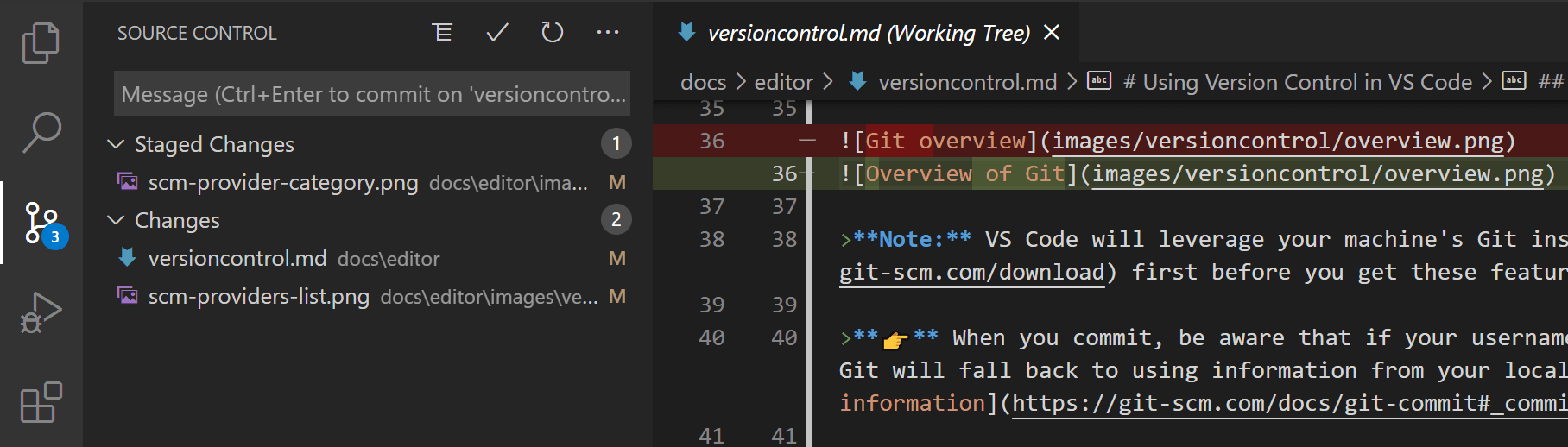
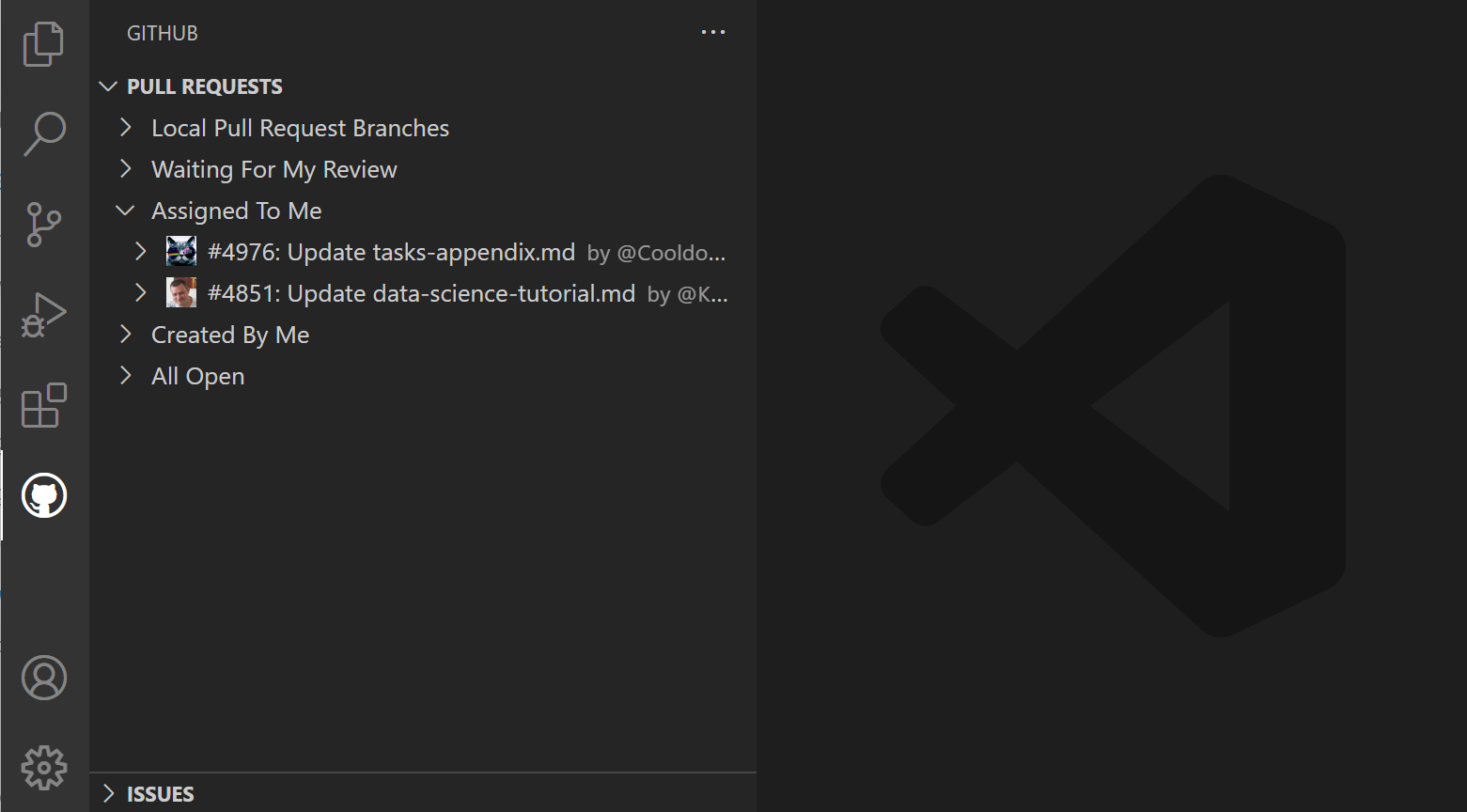
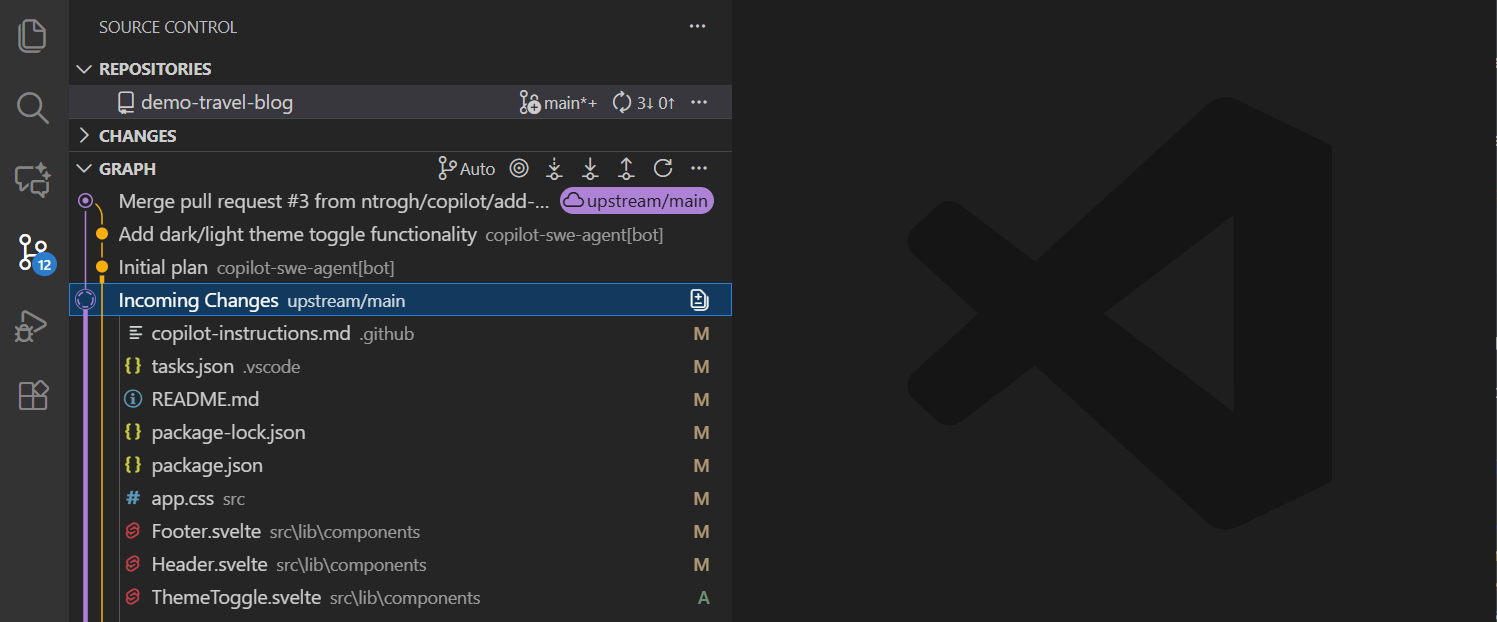
- What it is: Visual tools for managing Git repositories. The built-in Source Control view handles commits, while the “GitHub Pull Requests and Issues” extension manages code reviews directly in the editor.
- How to use it: Open the Source Control view (third icon down on the Activity Bar). Stage changes by clicking the
+icon next to a file, type a commit message, and click Commit. - How it works in practice: VS Code visually highlights added, modified, and deleted lines in the gutter margin. The GitHub extension allows you to check out a peer’s branch, leave inline comments, and merge Pull Requests without ever opening a web browser.
9. Hidden Pro Features
Beyond the standard editing and debugging tools, VS Code contains several hidden features designed to adapt the IDE to your specific environment, reduce distractions, and synchronize your setup across multiple computers.
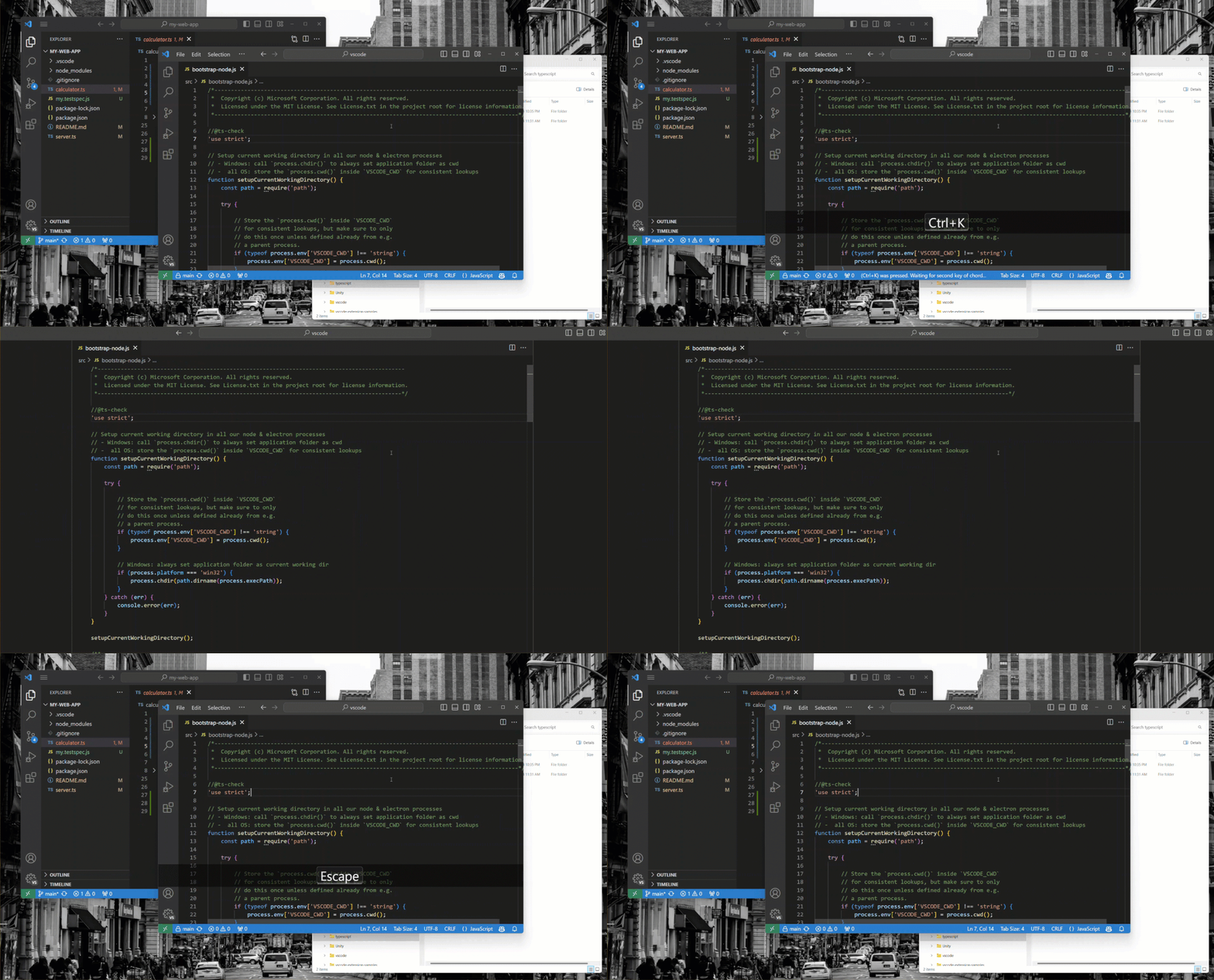
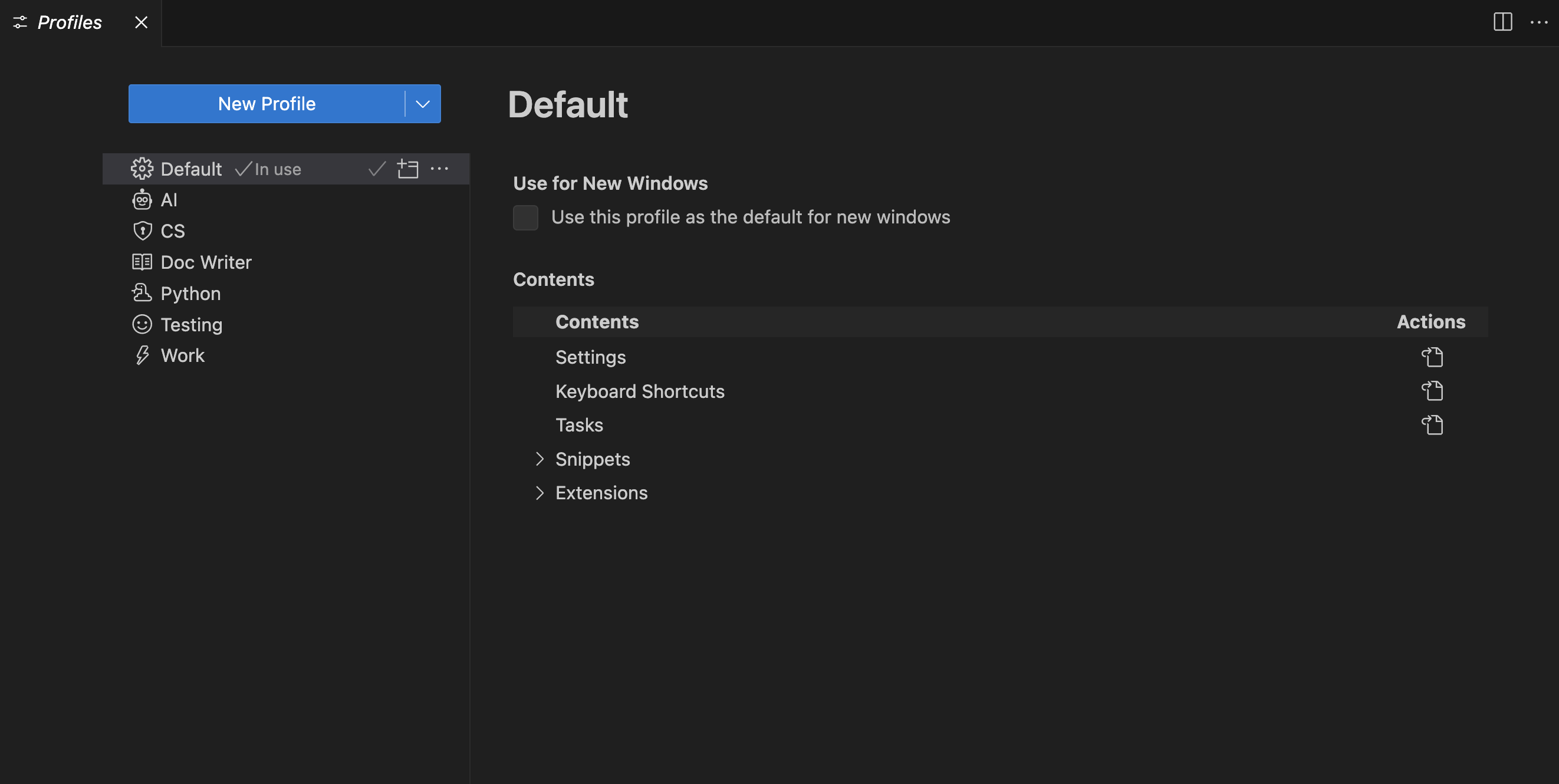
- What it is: A suite of power-user features that optimize focus, navigation, and portability. Zen Mode hides UI clutter for deep work. Breadcrumbs help you move through file paths and symbols. Profiles save stack-specific setups. Settings Sync backs everything up across devices.
- Shortcut: Zen Mode:
Ctrl+K Z. Split Editor (bonus):Ctrl+\. - How to use it:
– Zen Mode: Press the shortcut to enter a distraction-free view containing only your code.
– Breadcrumbs: Use the navigation trail above the editor to jump between folders, files, functions, methods, and classes in large projects.
– Profiles: Navigate toFile > Preferences > Profilesto create a new profile (for example, “Python Data Science” or “Web Dev Semester Project”).
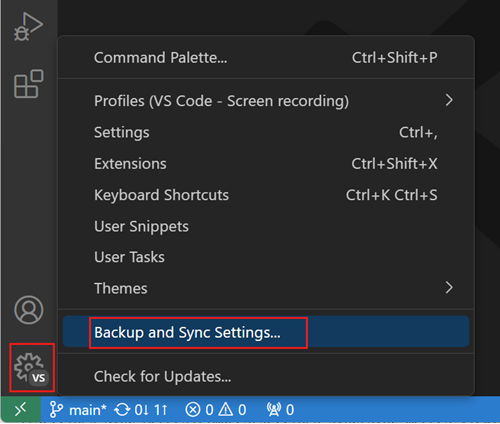
– Settings Sync: Click the gear icon in the bottom left, select “Turn on Settings Sync…”, and sign in with GitHub or Microsoft.
– Split Editor: UseCtrl+\to compare files side by side when tracing logic across multiple modules. - How it works in practice: Breadcrumbs reduce navigation time inside large codebases, split editors make comparison easy, Profiles isolate your tools by project type, and Settings Sync ensures that when you switch from your laptop to a lab machine, your extensions, keybindings, and preferences follow you automatically.
Ctrl+K Z to hide the terminal, sidebar, and status bar. The screen is nothing but your algorithm logic, allowing you to trace the recursion without visual distraction. Later, you go to the campus library, log into VS Code via Settings Sync, and your exact environment is ready to go.
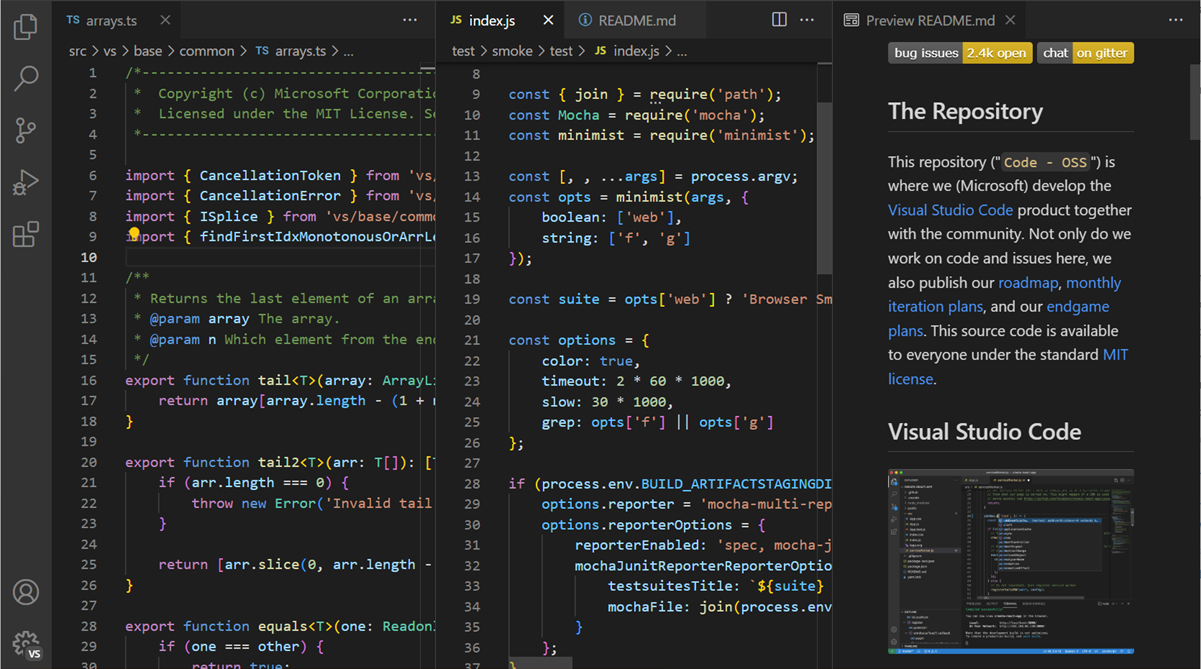
Ctrl+\ to split editors for comparing files!).Official References
- VS Code Docs: Keybindings
- VS Code Docs: Tips and Tricks
- VS Code Docs: Basic Editing
- VS Code Docs: IntelliSense
- VS Code Docs: Debugging
- VS Code Docs: Terminal Basics
- VS Code Docs: Source Control Overview
- VS Code Docs: User Interface
- VS Code Docs: Settings Sync
- VS Code Docs: Profiles
- VS Code Docs: GitHub Integration
- VS Code Docs: Extension Marketplace
