
Visual Studio Code Full Guide for Beginners & Students (2026 Ultimate Tutorial)
Visual Studio Code Full Guide for Beginners and Students
Quick Summary
This comprehensive document serves as a full-length guide to Visual Studio Code (VS Code),
tailored specifically for beginners and students. It covers core concepts, detailed setup instructions, an
explanation of the user interface, extension management, debugging, and terminal operations. Furthermore, it
highlights VS Code for Education, a zero-install, browser-based version designed to help students learn
Python, web development, and essential coding skills across any device.
Table of Contents
1. Overview
Welcome to the ultimate guide to mastering Visual Studio Code. Whether you are a student writing your very first
lines of Python, or a beginner developer looking to structure your web development projects, choosing the right
text editor is a critical first step. This document is designed to demystify the coding environment, providing a
structured, step-by-step pathway from installation to project completion.
Throughout this guide, we will explore both the desktop version of Visual Studio Code and the highly accessible
Visual Studio Code for Education platform. By the end of this document, you will have a solid
understanding of how to navigate the user interface, manage your files, install powerful extensions, and debug
your code like a professional. (Source: Visual Studio Code Documentation)
2. What Is Visual Studio Code?
Visual Studio Code (often abbreviated as VS Code) is a free, lightweight, yet powerful source code editor
developed by Microsoft. It is available for Windows, macOS, and Linux operating systems. Despite its small
download size (less than 200 MB) and minimal disk footprint, it comes packed with a rich set of features that
rival heavy Integrated Development Environments (IDEs).
VS Code provides built-in support for JavaScript, TypeScript, and Node.js. It also has a massive, diverse
ecosystem of extensions for other languages (such as C++, C#, Java, Python, PHP, and Go) and runtimes (such as
.NET and Unity). Because it supports auto-updates, you are always equipped with the latest features and security
patches. (Source: Visual Studio Code Documentation)
Do not confuse “Visual Studio Code” with “Visual Studio.” Visual Studio is a massive, full-featured IDE primarily
focused on Windows and .NET development. Visual Studio Code is a streamlined, cross-platform code editor that is
highly extensible. For beginners and general web/scripting development, VS Code is usually the preferred choice.
3. How Visual Studio Code Works
Unlike traditional word processors that open single files, Visual Studio Code operates primarily on a
workspace or folder-centric workflow. When you open a folder in VS Code, that folder becomes your
“workspace,” allowing the editor to provide intelligent code completion, file searching, and project management
capabilities across all files within that directory.
Editor + Services Model
VS Code keeps its core fast by relying on an “Editor + Services” model. The core editor handles text manipulation,
interface rendering, and file saving. Complex language features—like auto-completion (IntelliSense), error
checking, and code formatting—are handled by background services or “language servers.”
The Power of Extensions
The true power of VS Code lies in its Extensions Marketplace. The features included out-of-the-box are just the
foundation. You can browse, install, manage versions, disable, and uninstall extensions to perfectly tailor the
editor to your workflow. Whether you need a Python compiler, a live HTML preview, or a color theme that reduces
eye strain, there is an extension for it.
(Source: Visual Studio Code Documentation)
4. How to Use Visual Studio Code for Beginners
Getting started with Visual Studio Code involves a simple setup process, familiarizing yourself with the
interface, and learning core operations. Let us break down these steps in detail.
Installation and Setup
Setup is exceptionally quick. Simply download the installer for your operating system (macOS, Linux, or Windows).
Because it is a small download, installation takes only a few minutes. Once installed, VS Code will prompt you to
install additional components like Git, Node.js, or language runtimes depending on your needs.
(Source: Visual Studio Code Documentation)
Understanding the User Interface
The VS Code user interface is divided into several main areas optimized to maximize the space for your code while
keeping essential tools within reach.
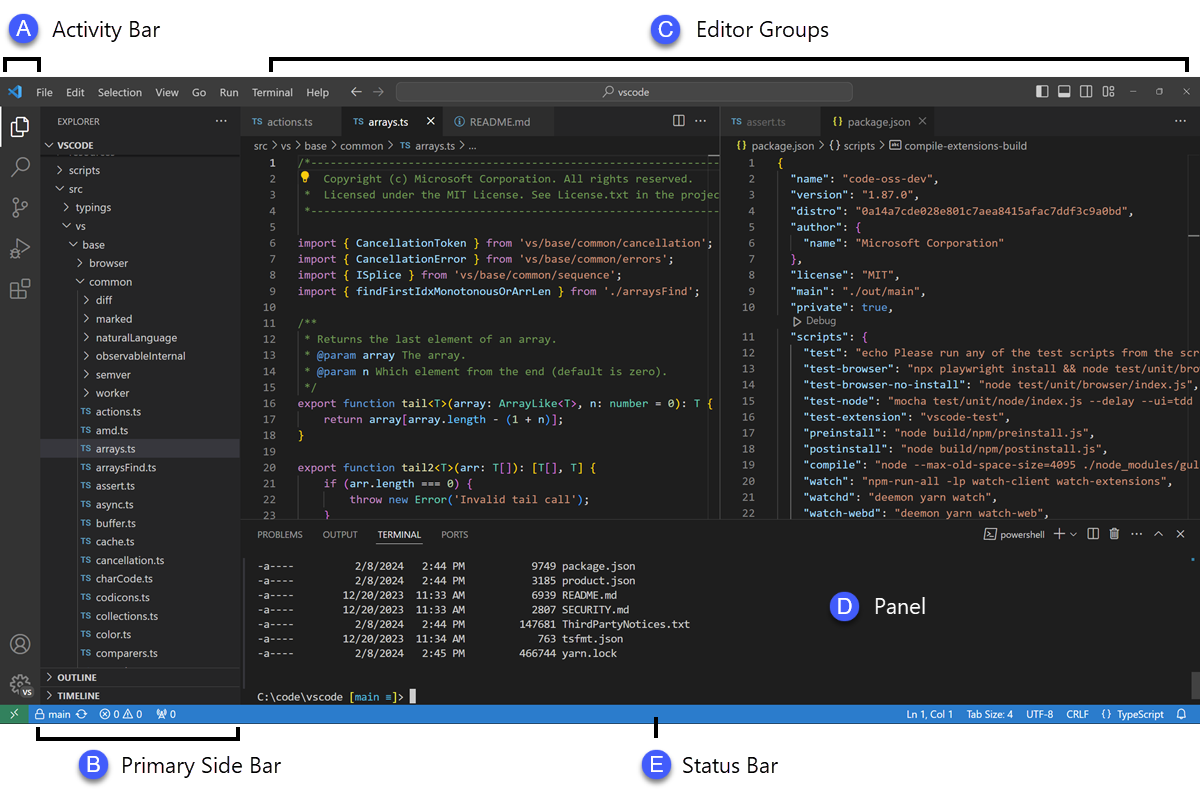
bar. Understanding this layout is essential for beginners.
The core UI areas include:
- Editor: The main area to view and edit your files. You can split this area to view multiple
files side-by-side. - Primary Side Bar: Contains different views like the Explorer (to view your files), Search,
Source Control, and Extensions. - Activity Bar: Located on the far left. It lets you switch between the different views in the
Primary Side Bar. - Panel: Typically located below the editor region, this area holds the integrated terminal,
output logs, debug information, and error warnings. - Status Bar: Located at the very bottom, it shows information about the opened project, active
files, cursor position, and current Git branch. - Secondary Side Bar: An optional secondary bar (often used for AI chat features like GitHub
Copilot) opposite the primary one.
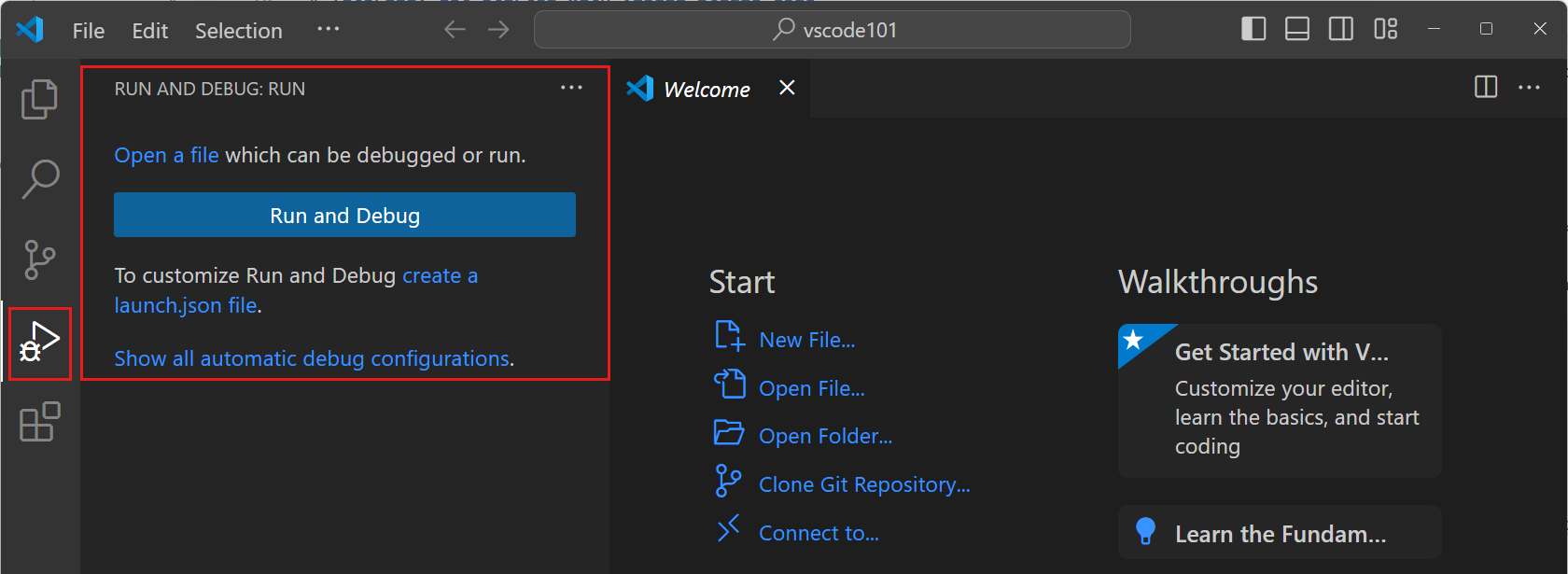
corresponding view in the Side Bar.
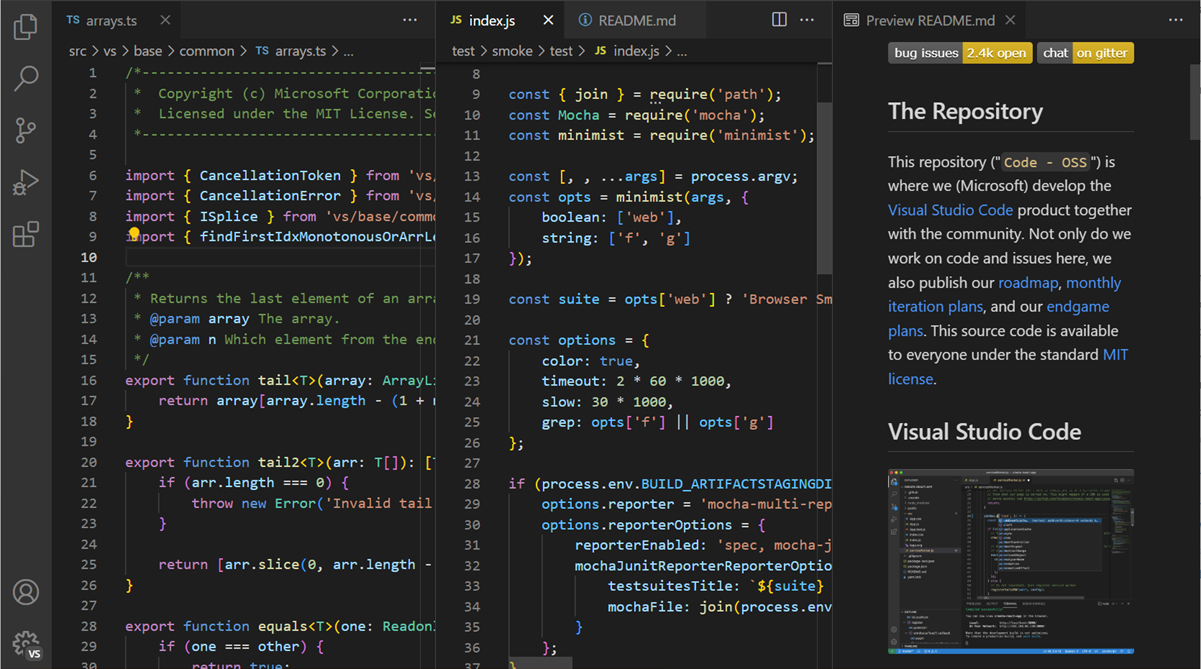
while writing CSS, for example.
The Command Palette
The Command Palette is arguably the most important feature in VS Code. Accessible via
Ctrl+Shift+P (Windows/Linux) or Cmd+Shift+P (macOS), it provides access to all
functionality within VS Code, including commands provided by extensions.
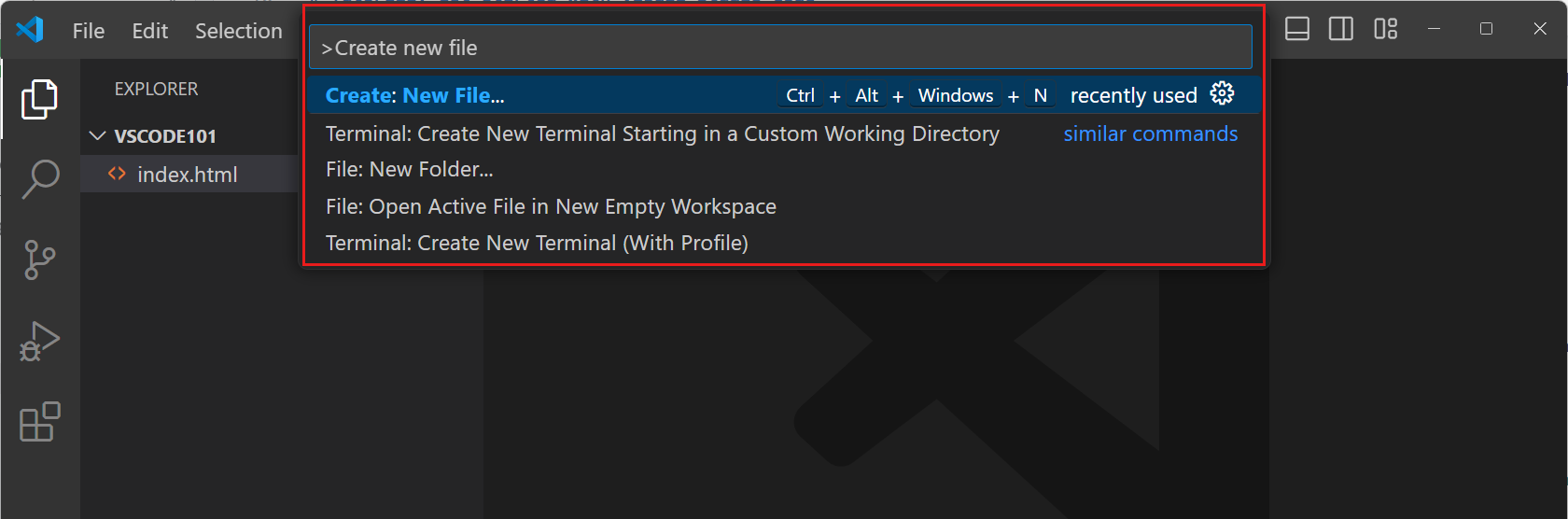
memorize complex keyboard shortcuts.
Whenever you are lost or cannot find a menu option, open the Command Palette and type what you want to do (e.g.,
“format document”, “install extension”, or “change theme”).
Managing Files and Folders
To begin working, use File > Open Folder… to open a specific project folder. The Explorer
view in the Side Bar will display all files within that folder. You can use the “New File” and “New Folder” icons
at the top of the Explorer view to build your project structure.
Debugging Basics
Finding and fixing errors (debugging) is a critical skill. VS Code includes a powerful built-in debugger. The Run
and Debug view allows you to configure launch settings, manage breakpoints, and step through code line by line.
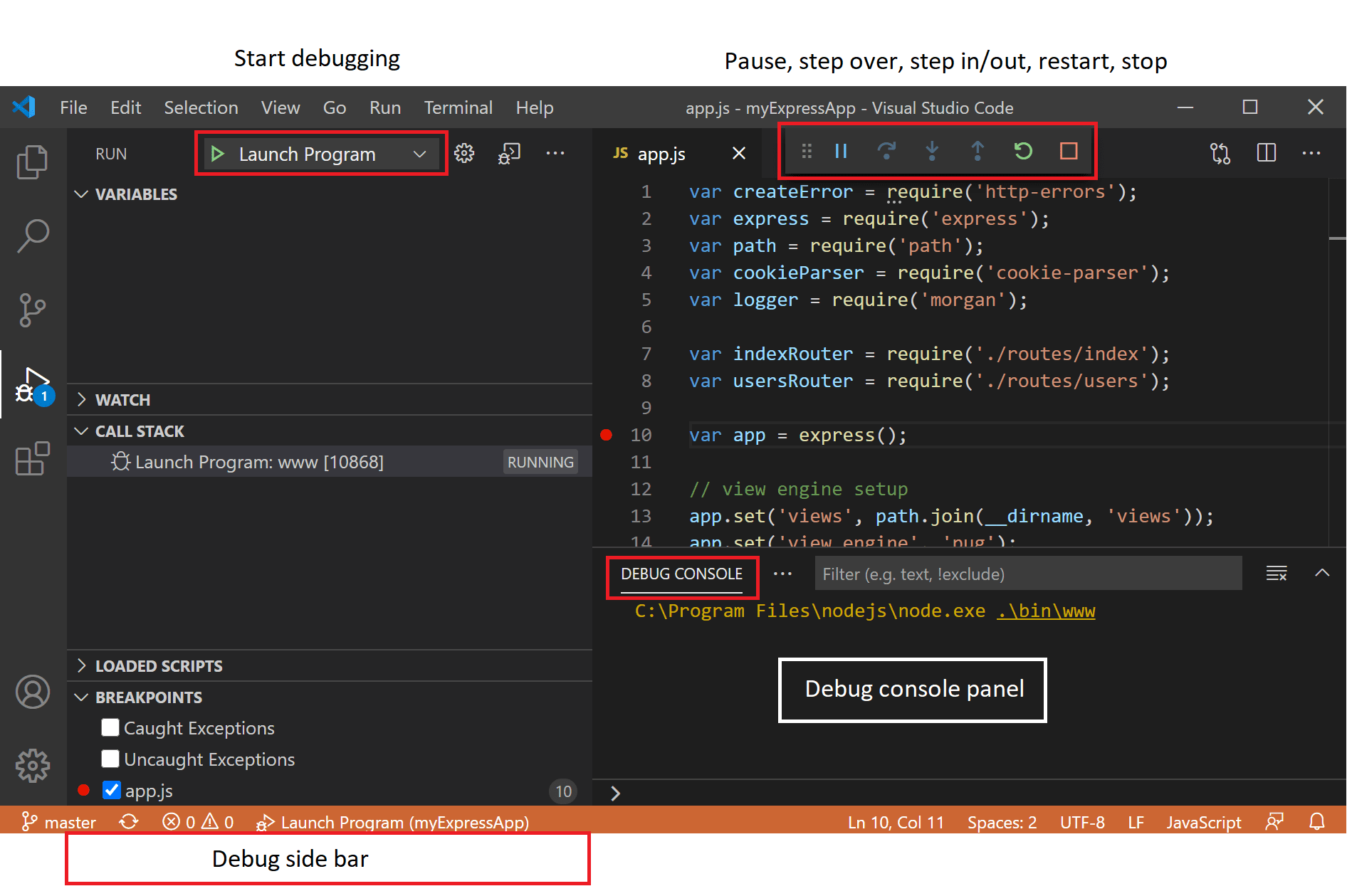
see exactly what their code is doing in real-time.
When you start a debug session, the Debug Toolbar appears at the top of the editor. This toolbar provides controls
to pause, step over, step into, step out, restart, or stop the debugging session.

inspecting code.
Using the Integrated Terminal
Instead of switching back and forth between your code editor and a separate command prompt, VS Code provides an
Integrated Terminal that starts at the root of your workspace.
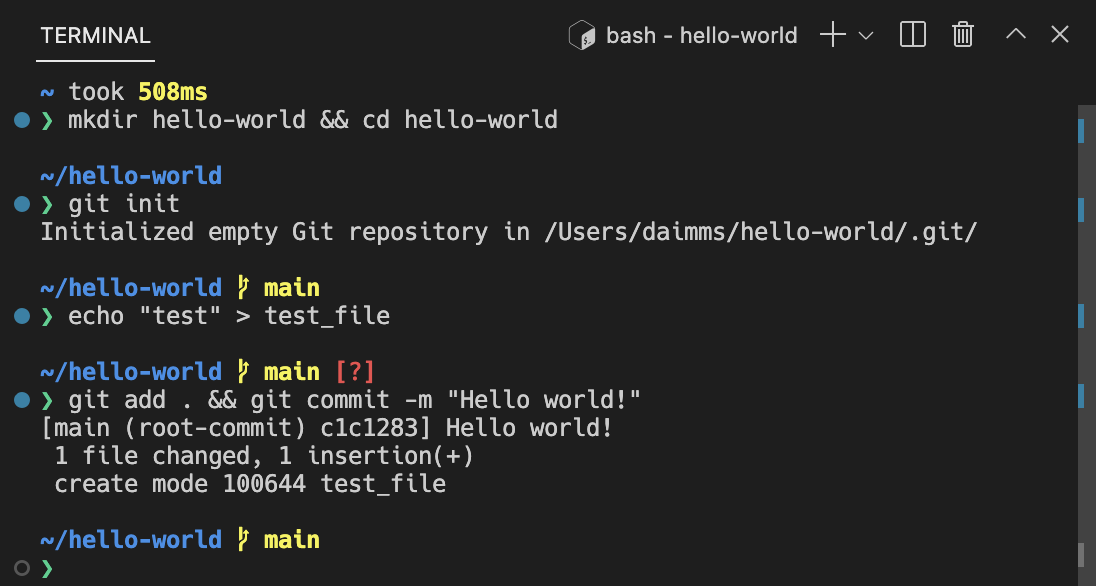
paths.
The terminal supports various shells (like PowerShell, Command Prompt, or bash). You can open multiple terminal
tabs, split them side-by-side, and even utilize inline chat assistance to help you formulate complex command-line
instructions.
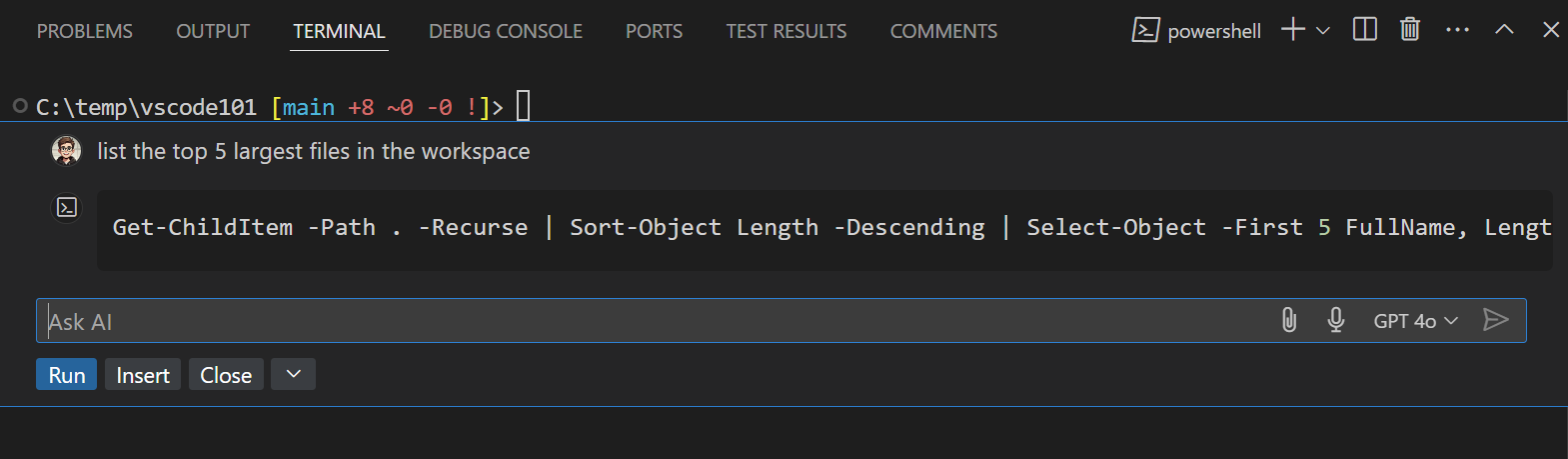
drastically reducing the command-line learning curve.
5. Why Students Should Use VS Code
For students stepping into the world of computer science, VS Code is the gold standard. It provides a seamless
transition from basic educational tools to professional environments. Furthermore, Microsoft has introduced a
specific version tailored for academic environments: Visual Studio Code for Education.
(Source: Microsoft Education)
Industry Relevance and Future-Ready Skills
By learning to code with VS Code, students are using the exact same tools and platforms utilized by software
engineering professionals around the globe. This builds highly transferable, real-world skills in modern
technologies like Python, JavaScript, and Web Development.

in a professional-grade editor.
Zero Setup and Cross-Device Compatibility
One of the largest hurdles in computer science classrooms is configuring development environments. VS Code for
Education requires zero installation. Because it is a free, browser-based platform, students only need an internet
connection. It works flawlessly across laptops, tablets, desktops, and Chromebooks.
Built-in Curricula and Assessments
The educational version provides bite-sized lessons, full Python/Web Development courses, coding activities, and
interactive assessments directly within the platform.

their knowledge without leaving the editor.
Accessibility for All Learners
To ensure every student has the opportunity to learn, accessibility is built-in by design. Features include high
contrast modes, screen reader support, zoom capabilities, and Microsoft’s Immersive Reader.

barriers to learning syntax and concepts.
6. Practical Beginner Workflow
To solidify your understanding, here is a practical, step-by-step workflow that simulates a beginner creating
their first project.
| Step | Action | Description |
|---|---|---|
| 1. Setup | Open Workspace | Open VS Code and navigate to File > Open Folder. Create a new folder named“MyFirstProject”. This roots the integrated terminal and file explorer to this location. |
| 2. Creation | Create Files | In the Explorer view, click the “New File” icon. Create an index.html and ascript.js file. |
| 3. Coding | Write Code | Begin typing in the editor. Notice how IntelliSense automatically suggests HTML tags and JavaScript functions. |
| 4. Extension | Install Live Server | Click the Extensions icon in the Activity Bar. Search for “Live Server” and click Install. This allows you to preview your web page dynamically. |
| 5. Terminal | Run Commands | Open the Integrated Terminal (View > Terminal). You can run commands here, or use theTerminal Chat for help. |
| 6. Debugging | Set Breakpoints | Click in the gutter (to the left of line numbers) in script.js to place a red dot (breakpoint).Run the debugger to pause code execution and inspect variables. |
Get into the habit of saving your files frequently (
Ctrl+S or Cmd+S). Additionally, usethe built-in Source Control view (the branch icon in the Activity Bar) to track your changes using Git. This
protects your work and helps build a portfolio.

a safe, web-based environment.
7. Conclusion
Visual Studio Code strikes the perfect balance between approachability for beginners and immense power for
seasoned professionals. Its intuitive interface, robust extension marketplace, integrated debugging, and terminal
support make it a one-stop-shop for software development.
For students, the introduction of Visual Studio Code for Education completely removes the technical barriers of
hardware limitations and complex software installations. By providing a browser-based, accessible, and
curriculum-rich environment, it ensures that the future generation of developers can focus entirely on what
matters most: learning to write great code.
8. References
- Visual Studio Code Documentation: Setup Overview. Retrieved from
https://code.visualstudio.com/docs/setup/setup-overview - Visual Studio Code Documentation: Getting Started. Retrieved from
https://code.visualstudio.com/docs/getstarted/getting-started - Visual Studio Code Documentation: User Interface. Retrieved from
https://code.visualstudio.com/docs/getstarted/userinterface - Visual Studio Code Documentation: Extension Marketplace. Retrieved from
https://code.visualstudio.com/docs/configure/extensions/extension-marketplace - Visual Studio Code Documentation: Debugging. Retrieved from
https://code.visualstudio.com/docs/debugtest/debugging - Visual Studio Code Documentation: Terminal Basics. Retrieved from
https://code.visualstudio.com/docs/terminal/basics - Visual Studio Code for Education Platform. Retrieved from
https://visualstudio.microsoft.com/vscode-edu/ - Visual Studio Code for Education FAQ. Retrieved from
https://vscodeedu.com/faq - Microsoft Education Blog: Teach computing skills with Visual Studio Code for Education. Retrieved from
https://www.microsoft.com/en-us/education/blog/2024/05/teach-computing-skills-with-visual-studio-code-for-education-new/
