
Best VS Code Extensions Full List (Must-Have Tools for Developers 2026)
VS Code Topics – Full Guide
Table of Contents
- Executive Summary
- Getting Started and Installing VS Code
- Understanding the Interface and Essential Navigation
- Extension Marketplace and Management
- Best VS Code Extensions: A Full Guide
- Recommended Extension Stacks by Role
- Beginner-to-Advanced Setup Guide
- Source Control with Git and GitHub
- Debugging in VS Code
- Dev Containers and Consistent Environments
- Docker-Based Workflows and Deployment
- Publishing Your Own VS Code Extension
- Best Practices, Security, and Performance Tips
- Final Recommendations and Checklists
- References
Executive Summary
Visual Studio Code (VS Code) is a lightweight but powerful source code editor that runs on your desktop. This
document provides a comprehensive, practical guide spanning from initial software setup for absolute beginners to
advanced Docker and deployment workflows for senior developers. It covers essential topics including extension
management, debugging, Dev Containers, and the step-by-step process of publishing your own extensions to the
Marketplace.
Getting Started and Installing VS Code
Beginners commonly start by installing VS Code, optionally setting up GitHub Copilot, and installing Node.js for
JavaScript debugging workflows. The initial setup requires downloading the application from the official site and
opening a dedicated workspace.
Upon opening a new project folder, VS Code will prompt a Workspace Trust dialog. It is recommended to confirm
Workspace Trust to enable full functionality. Without trusting a workspace, VS Code operates in restricted mode to
prevent malicious automatic code execution.
Understanding the Interface and Essential Navigation
The user interface is structured to maximize editing space while keeping tools easily accessible. Key components
include:
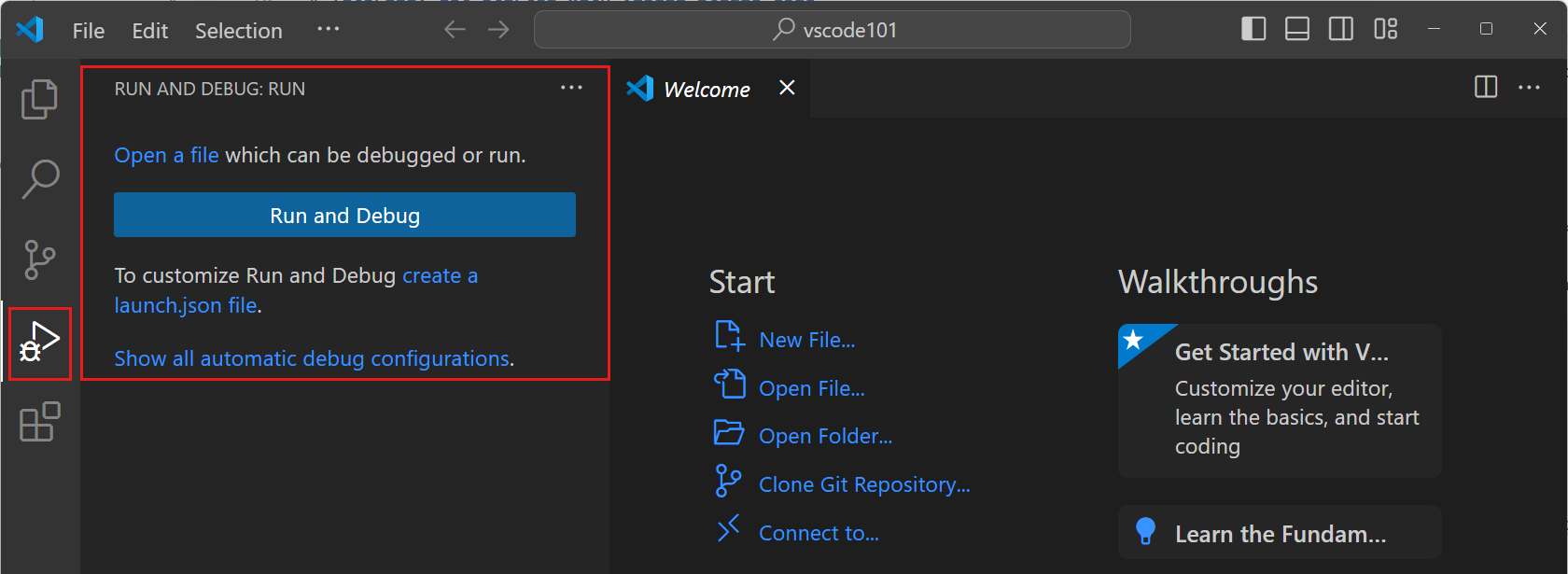
- Activity Bar: Located on the far left, this lets you switch between views (Explorer, Search,
Source Control, Run and Debug, Extensions). - Side Bar: Contains different views like the Explorer to manage your files.
- Editor Groups: The main area to edit your files. You can split editors vertically and
horizontally. - Integrated Terminal: Open a command-line interface directly within the editor.
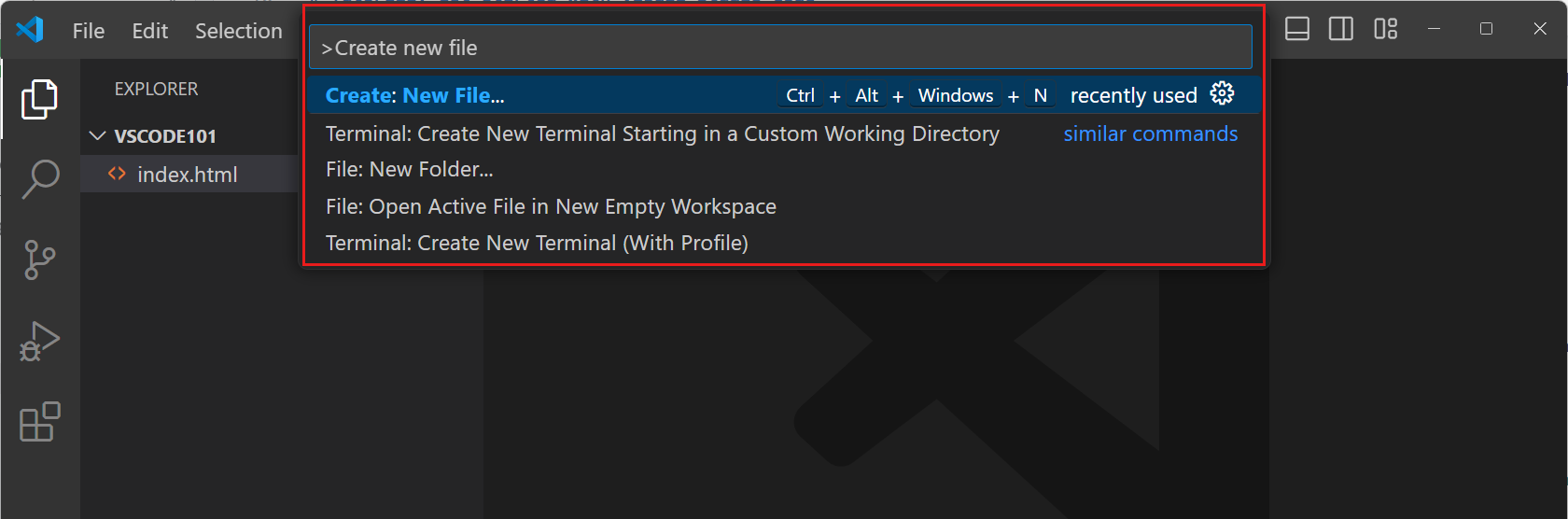
- Command Palette: Accessed via Ctrl+Shift+P (or Cmd+Shift+P on Mac), providing quick access to
all available commands.
Extension Marketplace and Management
Extensions can be browsed and installed directly from the Extensions view in VS Code or from the Visual Studio
Marketplace. Extensions allow developers to add languages, debuggers, and tools to support their development
workflow.


When installing extensions, users should be mindful of publisher trust. The Marketplace uses publisher
verification and malware scanning, but installing unverified extensions from unknown publishers poses security
risks.
Best VS Code Extensions: A Full Guide
The right extensions transform VS Code from a simple text editor into an integrated development environment. Below
is a detailed summary of essential extensions, followed by an in-depth look at each.
| Extension | Primary Use | Best For | Key Benefit |
|---|---|---|---|
| GitHub Copilot | AI Assistance | All Developers | AI-powered code generation |
| Prettier | Code Formatting | Frontend / Web Devs | Opinionated, consistent styling |
| ESLint | Code Linting | JavaScript/TypeScript Devs | Finds and fixes syntax problems |
| Python | Language Support | Python Devs / Data Scientists | IntelliSense, linting, debugging |
| Docker | Container Management | DevOps / Backend Devs | Manage containers natively |
| GitLens | Advanced Git UI | All Developers | Code authorship and history |
| Live Server | Local Web Server | Web Developers | Instant live browser reload |
| Live Share | Collaboration | Pair Programmers / Teams | Real-time remote collaboration |
| Thunder Client | API Testing | Backend / Fullstack Devs | Lightweight REST API client |
| Remote – SSH | Remote Development | Sysadmins / DevOps | Develop on a remote machine |
| Dev Containers | Containerized Dev | Teams / Standardization | Full-featured container environments |
| Error Lens | Inline Diagnostics | All Developers | Highlights errors prominently |
GitHub Copilot
- What it is: An AI pair programmer that offers autocomplete-style suggestions as you code.
- What problem it solves: Reduces boilerplate coding and accelerates problem-solving by
suggesting whole lines or blocks of code. - When to install it: Immediately, if you have a Copilot subscription and want to speed up
writing standard algorithms and boilerplate. - Best use cases: Rapid prototyping, writing unit tests, and exploring unfamiliar APIs.
- Important notes / tips: Always review the generated code for security and accuracy before
committing. - Who should use it: Developers looking to increase typing speed and productivity.
- Source:
Official Marketplace Link
Prettier – Code Formatter
- What it is: An opinionated code formatter that enforces a consistent style.
- What problem it solves: Ends debates over code formatting (tabs vs. spaces, quote styles) by
parsing code and re-printing it systematically. - When to install it: At the start of any web development project.
- Best use cases: Formatting HTML, CSS, JavaScript, TypeScript, and JSON files on save.
- Important notes / tips: Configure it in your
settings.jsonto “format on save” for
seamless integration. - Who should use it: Frontend and full-stack web developers.
- Source:
Official Marketplace Link
ESLint
- What it is: Integrates ESLint directly into VS Code.
- What problem it solves: Identifies problematic patterns in JavaScript/TypeScript code before
runtime execution. - When to install it: When working on any JS/TS project that enforces code quality rules.
- Best use cases: Catching syntax errors, enforcing framework rules (like React hooks rules), and
preventing bugs. - Important notes / tips: Requires ESLint to be installed in your local workspace or globally.
- Who should use it: JavaScript and TypeScript developers.
- Source:
Official Marketplace Link
Python
- What it is: The official Python extension by Microsoft, providing rich language support.
- What problem it solves: Provides IntelliSense, linting, debugging, code navigation, and Jupyter
Notebook support out of the box. - When to install it: The moment you open a
.pyfile. - Best use cases: Developing Python scripts, Django/Flask apps, or Data Science notebooks.
- Important notes / tips: Use the interpreter selector in the bottom status bar to choose your
specific virtual environment (venv/Conda). - Who should use it: Python developers and data scientists.
- Source:
Official Marketplace Link
Docker
- What it is: Tools for building, managing, and deploying containerized applications.
- What problem it solves: Removes the need to memorize complex CLI commands for managing Docker
images, containers, and registries. - When to install it: When your project relies on Dockerfiles or docker-compose.
- Best use cases: Generating Dockerfiles, starting/stopping containers visually, and inspecting
logs. - Important notes / tips: Works exceptionally well when paired with Dev Containers for an
end-to-end containerized workflow. - Who should use it: Backend developers and DevOps engineers.
- Source:
Official Marketplace Link
GitLens
- What it is: An extension that supercharges Git capabilities within VS Code.
- What problem it solves: Makes code authorship transparent via inline blame annotations and
advanced history exploration. - When to install it: Immediately for any team-based project tracked by Git.
- Best use cases: Finding out who changed a specific line of code and understanding the context
of the change. - Important notes / tips: If the inline blame is too distracting, it can be toggled off or
switched to status-bar only. - Who should use it: Any developer collaborating on a Git repository.
- Source:
Official Marketplace Link
Live Server
- What it is: Launches a local development server with a live reload feature for static and
dynamic pages. - What problem it solves: Eliminates the need to manually refresh the browser every time a file
is saved. - When to install it: When building vanilla HTML/CSS/JS websites.
- Best use cases: Rapid prototyping of frontend interfaces.
- Important notes / tips: Not necessary if using modern frameworks like React/Vue, which have
their own dev servers (e.g., Vite). - Who should use it: Beginners and frontend developers building static sites.
- Source:
Official Marketplace Link
Live Share
- What it is: Enables collaborative editing and debugging in real-time.
- What problem it solves: Makes remote pair programming seamless by sharing context, not just
screens. - When to install it: Before a remote pairing session or technical interview.
- Best use cases: Pair programming, code reviews, and remote mentoring.
- Important notes / tips: Guests don’t need the project dependencies installed locally; they
piggyback off the host’s environment. - Who should use it: Remote teams and instructors.
- Source:
Official Marketplace Link
Thunder Client
- What it is: A lightweight REST API client built into VS Code.
- What problem it solves: Removes the need to switch to external applications like Postman to
test APIs. - When to install it: When developing or consuming REST or GraphQL APIs.
- Best use cases: Testing local endpoints, organizing API requests into collections, and writing
scriptless tests. - Important notes / tips: You can save collections locally in your workspace to share with your
team via version control. - Who should use it: Backend developers and QA engineers.
- Source:
Official Marketplace Link
Remote – SSH
- What it is: Lets you use any remote machine with an SSH server as your development environment.
- What problem it solves: Allows developers to edit files on remote servers directly, bypassing
cumbersome terminal-based editors like Vim or Nano. - When to install it: When working on cloud VMs, Raspberry Pis, or specialized hardware.
- Best use cases: Sysadmin tasks, deploying code to staging environments, and developing on
powerful remote hardware. - Important notes / tips: Configure SSH keys locally to avoid typing passwords constantly.
- Who should use it: DevOps, sysadmins, and backend engineers.
- Source:
Official Marketplace Link
Dev Containers
- What it is: Allows users to open a folder inside a Docker container.
- What problem it solves: Eliminates “it works on my machine” issues by standardizing the
development environment. - When to install it: When standardizing onboarding for a new team or dealing with complex
dependencies. - Best use cases: Projects requiring specific versions of Node, Python, databases, and CLI tools
that shouldn’t pollute the host machine. - Important notes / tips: Configuration is driven by a
devcontainer.jsonfile in the
project root. - Who should use it: Teams enforcing consistent environments.
- Source:
Official Marketplace Link
Error Lens
- What it is: Enhances language diagnostics by highlighting lines with warnings/errors.
- What problem it solves: Makes errors impossible to miss by printing the error text inline
directly in the editor rather than requiring a hover interaction. - When to install it: To accelerate bug-fixing workflows.
- Best use cases: Catching typos, linter warnings, and compilation errors immediately as they are
typed. - Important notes / tips: Can become noisy in heavily broken files; configure the delay in
settings if needed. - Who should use it: All developers looking for immediate feedback.
- Source:
Official Marketplace Link
Recommended Extension Stacks by Role
To avoid extension bloat, configure VS Code Profiles to group extensions by workflow:
- Web Development: Prettier, ESLint, Live Server, Error Lens.
- Python/Data Science: Python, Jupyter, GitHub Copilot.
- Backend/API: Thunder Client, Docker, Remote – SSH.
- DevOps/Remote Work: Dev Containers, GitLens, Remote – SSH, Live Share.
Beginner-to-Advanced Setup Guide
Setting up VS Code requires understanding its configuration layers. VS Code settings are split into two levels:
User settings (apply globally) and Workspace settings (apply only to the current
project).
A Phased Learning Path:
- Beginner: Download VS Code, open a folder, trust the workspace, and explore the Activity Bar.
Install a theme and basic language support. - Intermediate: Learn keyboard shortcuts (Command Palette: Ctrl+Shift+P). Configure user
settings.jsonfor auto-formatting. Install source control and linting extensions. - Advanced: Use Profiles to segregate extensions. Implement workspace-specific settings to
enforce coding standards. Use tasks and launch configurations (launch.json) to automate builds and
debugging.
Source Control with Git and GitHub in VS Code
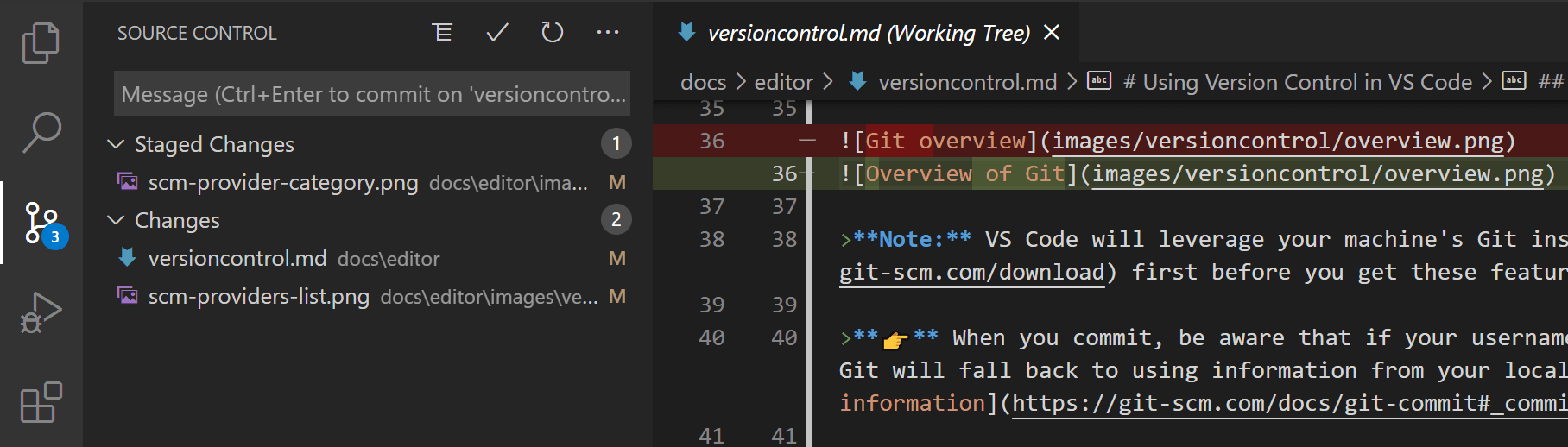
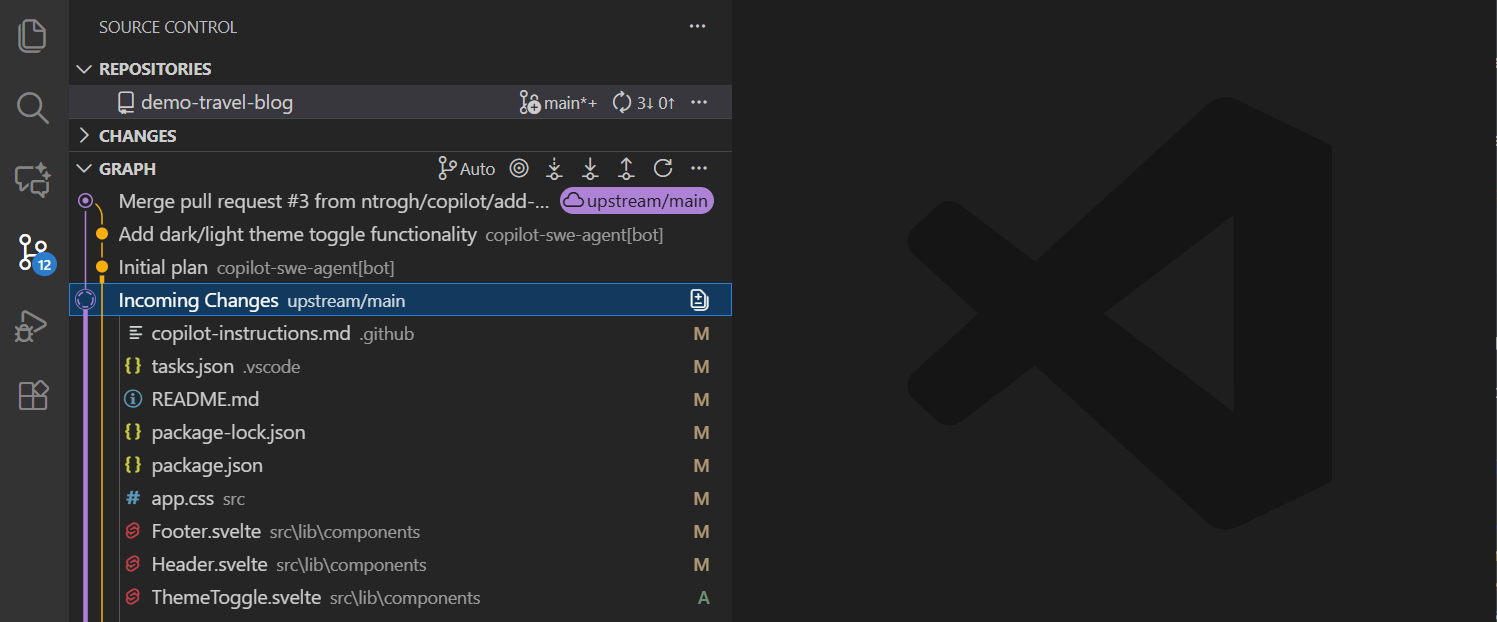
VS Code supports built-in Git integration for staging, committing, branching, merge conflict resolution, and
GitHub workflows.
Workflow Checklist:
- Prerequisites: Ensure Git is installed locally.
- Initialize/Clone: Use the Source Control view to initialize a new repository or clone an
existing one from GitHub. - Stage and Commit: Modify files, click the ‘+’ icon in the Source Control view to stage, enter a
message, and click ‘Commit’. - Branching: Use the bottom-left status bar to create and switch branches quickly.
- Syncing: Push and pull changes utilizing the “Sync Changes” button.
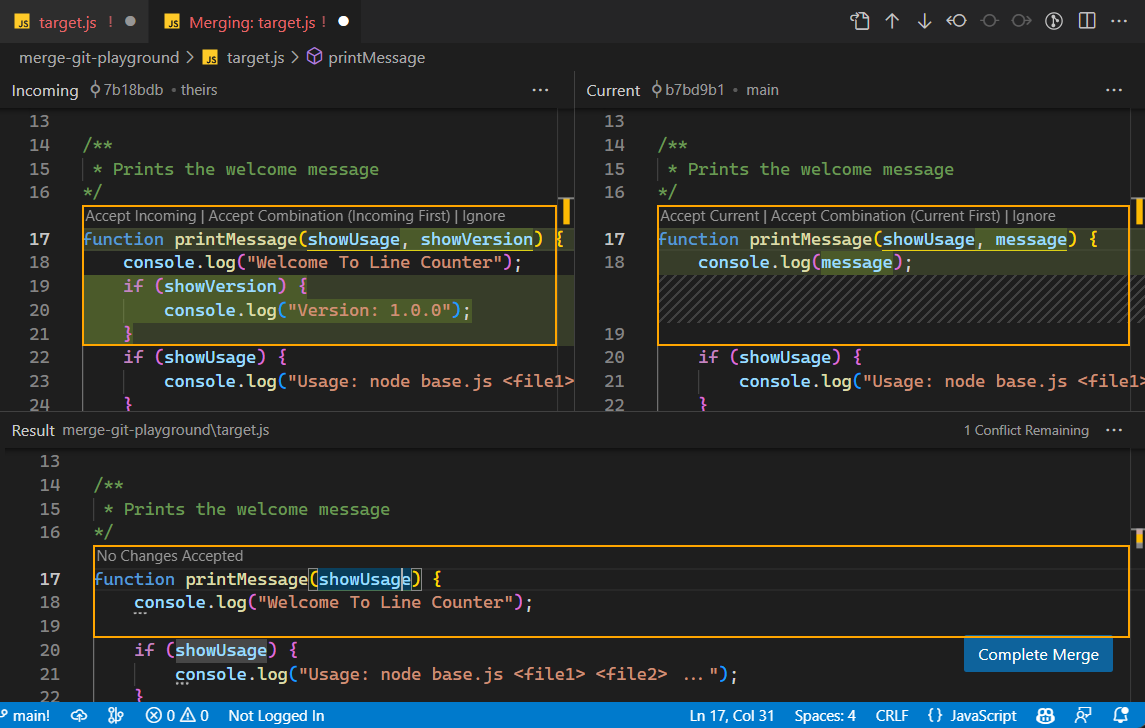
- Merge Conflicts: Utilize VS Code’s 3-way merge editor to resolve conflicts interactively.
Debugging in VS Code
Debugging often begins with opening a file, pressing F5, selecting a debugger, and using the Debug Console and
toolbar. VS Code has built-in support for Node.js debugging and relies on extensions for Python, C++, and Java.
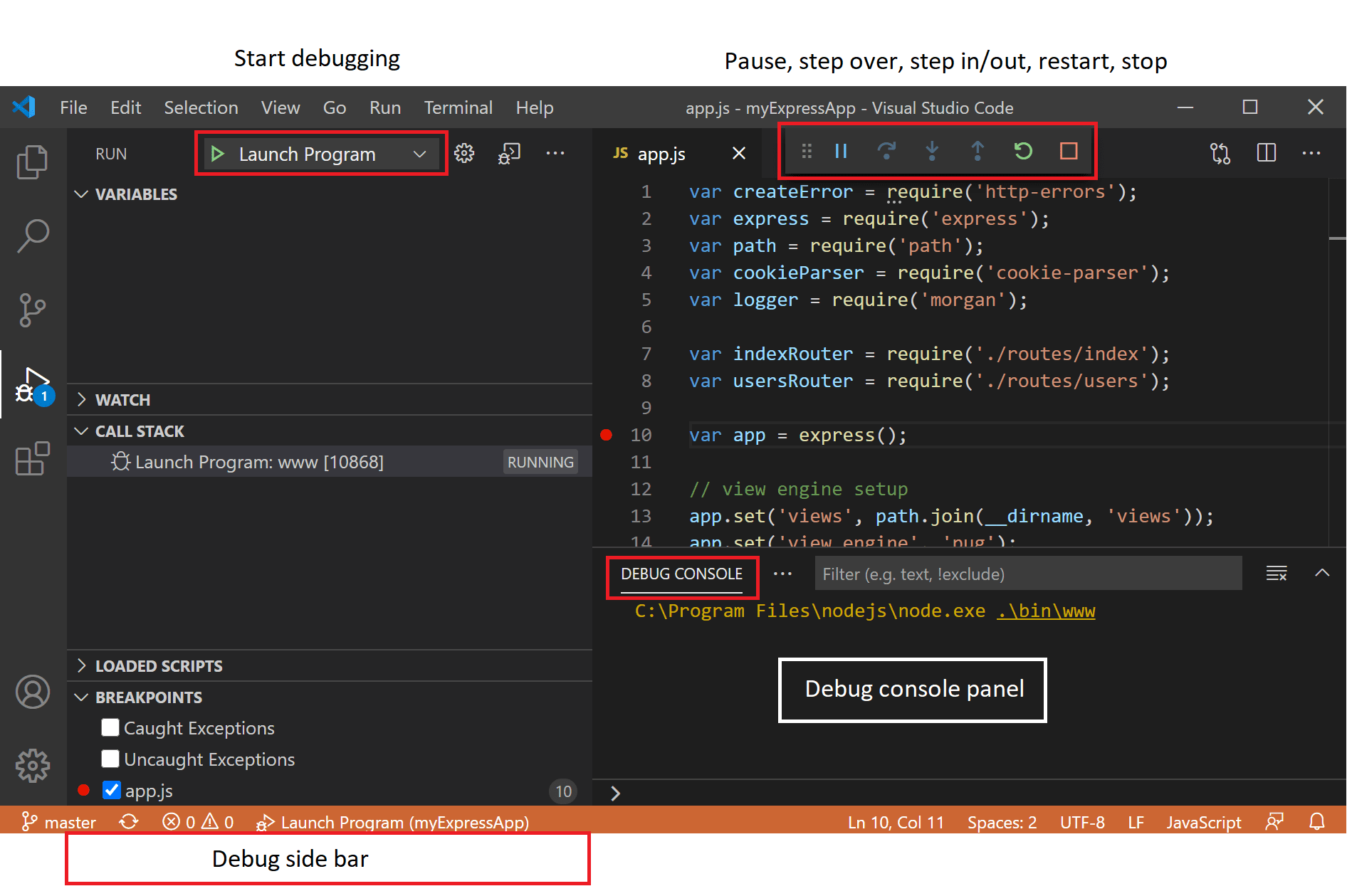
For complex applications, developers configure a launch.json file located in the
.vscode folder to customize executable paths, environment variables, and arguments. The floating
debug toolbar provides controls to step over, step into, step out, restart, or stop execution.

Dev Containers and Consistent Environments
Dev Containers let users use a container as a full-featured development environment, guided by
devcontainer.json. This isolates project dependencies from the local operating system.
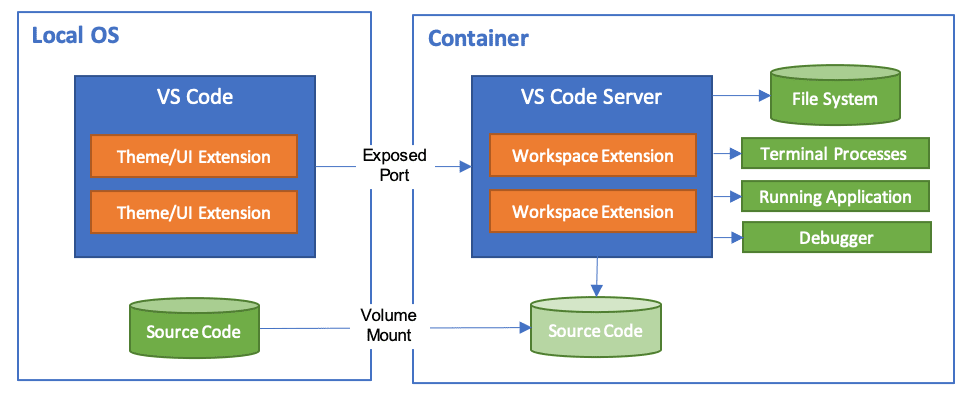
Why Prebuilt Images Matter: Pre-building container images improves startup speed, simplifies
configuration, and can improve supply-chain security by pinning tool versions.

Docker-Based Workflows and Deployment
Beyond Dev Containers, VS Code’s Docker extension allows for robust deployment workflows. Developers can write
Dockerfiles with auto-completion, build images from the Command Palette, and push them to container registries
(like Docker Hub or Azure Container Registry) natively.
By connecting local VS Code setups to Docker APIs, developers bridge the gap between local application development
and production deployment. You can view logs, execute terminal commands inside running production-like containers,
and prune unused images safely.
Publishing Your Own VS Code Extension
Publishing extensions typically involves creating a Marketplace publisher, using Azure DevOps with a Personal
Access Token (PAT), and publishing with the vsce tool.
Step-by-Step Flow:
- Create a Publisher via the Marketplace management portal using a Microsoft account.
- Create an Azure DevOps organization and generate a Personal Access Token (PAT) with Marketplace scopes.
- Install Node.js and the
@vscode/vsceCLI package globally. - Authenticate locally using the PAT.
- Use
vsce packageto generate a .vsix file to distribute manually, orvsce publishto
push directly to the Marketplace.

Best Practices, Security, and Performance Tips
Only install extensions from verified publishers. An extension has the same access rights to your machine as your
user account. Avoid extension bloat; disable or uninstall unused extensions to improve startup times and reduce
battery drain.
Always maintain a clean `.gitignore` to prevent committing configuration files like `.vscode/settings.json` if
they contain personal paths, but do commit `.vscode/extensions.json` and `.vscode/launch.json` to share tooling
setups with your team.
Final Recommendations and Checklists
VS Code remains an industry standard due to its lightweight nature paired with extensive customizability. By
mastering the command palette, source control integration, and Docker workflows, any developer can dramatically
increase their daily output.
Quick Start Checklist
- Download and install VS Code.
- Enable Workspace Trust for safe project folders.
- Install essential extensions: Prettier, GitLens, Error Lens.
- Configure User Settings (Format on Save, Auto-Save).
- Set up GitHub authentication for seamless syncing.
References
- Visual Studio Code: Getting Started
- Visual Studio Code: Extension Marketplace
- Visual Studio Code: Debugging
- Visual Studio Code: Source Control Overview
- Visual Studio Code: Dev Containers
- Visual Studio Code: Publishing an Extension
- Marketplace: GitHub Copilot
- Marketplace: Prettier – Code formatter
- Marketplace: ESLint
- Marketplace: Python
- Marketplace: Docker
- Marketplace: GitLens
- Marketplace: Live Server
- Marketplace: Live Share
- Marketplace: Thunder Client
- Marketplace: Remote – SSH
- Marketplace: Dev Containers
- Marketplace: Error Lens
